 Tmailor
 How to Block Email Tracking Pixels (and Tell If an Email Is Tracking You)
A tracking pixel is a small remote image that reports when a message is viewed. See what it can reveal, how to spot one, and which email settings block it or blur the signal.
Quick access
How to block email tracking pixels: the short answer
To block email tracking pixels, prevent your email app from loading remote images automatically, so a conventional pixel cannot report an open. Privacy proxies can hide or replace some request details, but a proxy that fetches an image when you open the message may still signal an open. Preloading systems make open times unreliable instead. None of these settings stops tracking when you click a tracked link.
The trade-off is that newsletters, receipts, and other legitimate messages may lose logos or formatting until you choose to load their images.
- Turn off automatic remote images. Gmail and Yahoo Mail have an "ask before showing" option, while Thunderbird and classic Outlook for Windows block remote pictures by default.
- Know what privacy features really do. Apple's Protect Mail Activity and Proton Mail's Block email tracking load images in advance, so a sender cannot reliably tell when you actually read the message.
- Check links before you click. Image settings do nothing about tracked links.
- Keep signups on a separate address. A second address does not stop an image request, but it limits how directly the tracked address connects to your main inbox.
What is an email tracking pixel, and what can it reveal?
An email tracking pixel is a remote image embedded in the HTML of a message, with a web address unique to you. When your email app loads it, the request goes to the sender's server or email platform, which logs that your copy of the image was fetched. Tracking pixels are often tiny or invisible, typically 1×1, but a logo or banner with a recipient-specific address can do the same job.
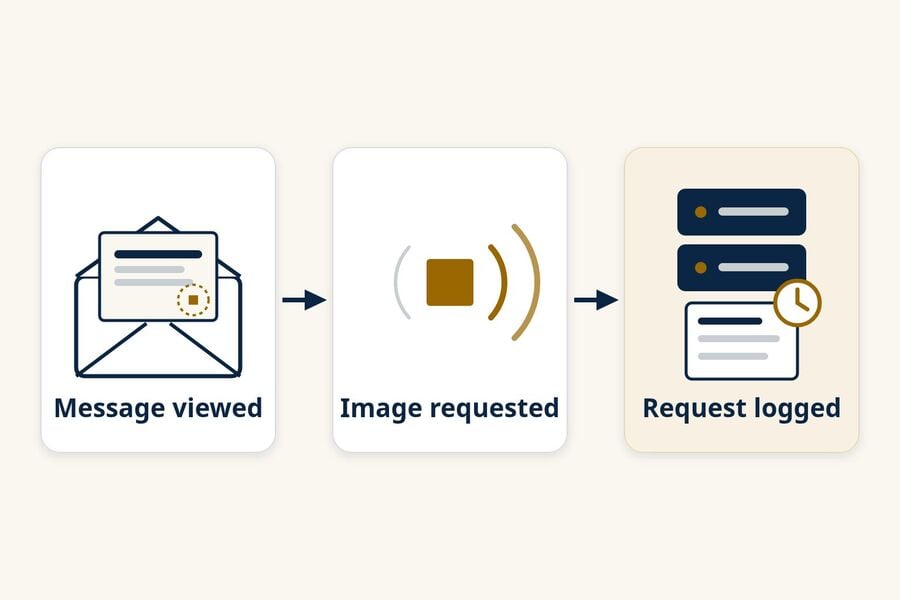
From a direct, unprotected request, a sender can usually log:
- That the image was requested, which often means the message was opened, along with the time and how many times it happened.
- The requesting IP address, which can be used to estimate a broad location or network provider. An IP address does not reveal a home address by itself.
- A user-agent string that may hint at the email app or platform. A user agent is a clue, not dependable device identification.
A tracking pixel cannot read your other emails, see your passwords, or open files on your device. A tracking pixel also does not need JavaScript: loading one uniquely addressed image is enough to create a log entry on the sender's side.
An image request is also not proof that a person read the message. Security scanners, preview panes, privacy proxies, and preloading can fetch images with nobody looking, while blocked images hide real opens. For the bigger picture of what your inbox can reveal, see the guide to temp mail and online privacy.
How can you tell whether an email is tracking you?
You usually cannot prove that a specific email is tracking you, but a few checks reveal likely trackers. Look for blocked remote content, recipient-specific image addresses in the source, and links that route through a redirect service.
Check whether remote content was blocked
If your email app shows a notice that images or remote content are hidden, the message contains images hosted somewhere else. Not every remote image is a tracker, but the notice tells you that loading the images would send a request to someone's server.
Inspect the message source for recipient-specific image URLs
Most email apps let you view the raw message, with options such as "Show original" or "View source." In the source, look for remotely hosted images with long or recipient-specific URLs, images sized 1 by 1, or images styled to stay hidden. A tracker may be a hidden 1×1 image, but it can also be a visible logo or another ordinary-looking image. Source inspection can reveal candidates; it usually cannot prove what the sender intends.
Preview link destinations before you click
Hover over a link on a computer, or long-press it on a phone, to see where it points. A link that goes to a different domain than the sender's or that carries a long string of letters and numbers often passes through a click-tracking redirect first. Marketing newsletters and sales emails commonly use engagement tracking, but the message category alone cannot tell you whether a particular email is tracked.
Treat tracker alerts as clues, not proof
Some browser extensions for webmail flag messages that contain images from known tracking services. They only recognize services on their lists, and they need permission to read your mail, so weigh that access before installing one. A read-receipt request is a different, visible feature; it is covered below.
How do you block tracking pixels in your email app?
The most reliable control in any email app is the setting that stops remote images from loading until you ask. The table summarizes each app, and the notes below give the steps and caveats. Settings were checked against each provider's own help pages in October 2026, and menu names can move between app versions.
| App or service | Out of the box | Setting to use | What it changes | Important limit |
|---|---|---|---|---|
| Gmail | Shows external images | Ask before displaying external images | Images wait until you choose to show them | Google says senders may still know you opened a message once images load |
| Apple Mail | Offers Protect Mail Activity | Protect Mail Activity, or Block All Remote Content on Mac | Preloads privately, or blocks until you load | Preloading blurs opens; it does not stop the fetch |
| Classic Outlook for Windows | Blocks automatic picture downloads | Keep "Don't download pictures automatically" on | No image request until you download pictures | Pictures you choose to download can still report |
| Outlook.com | Loads external images through an image proxy | Always use the Outlook service to load images | Images come through Microsoft's proxy | Microsoft does not say the proxy hides opens |
| Outlook for iOS and Android | Downloads images automatically unless blocking is on | Block External Images | Turns off automatic loading of external images | Images embedded as attachments still show |
| Yahoo Mail | Shows images, except in Spam | Ask before showing external images | Images wait until you choose to show them | Path documented for the classic layout |
| Thunderbird | Blocks remote content | Leave "Allow remote content in messages" off | Nothing remote loads until you allow it | Sender-based exceptions trust a spoofable address |
| Proton Mail | Block email tracking is on | Keep Block email tracking on | Removes known trackers and preloads other images through a proxy | Catches known trackers only; the setting does not sync between devices |
Gmail
Gmail scans images and loads them through Google's servers. Google's help page says senders can't use image loading to get information about your computer or location, but it also says senders may sometimes know whether you opened an email that has an image. To stop that open signal, make images wait for your approval:
- On the web, open Settings, then See all settings.
- On the General tab, find Images and select "Ask before displaying external images."
- Click Save Changes at the bottom of the page.
In the Gmail app for Android, tap Menu, then Settings, choose your account, tap Images under "Data usage," and pick "Ask before showing." You can still load images in any message you trust by tapping "Show pictures."
Apple Mail Privacy Protection
Apple Mail Privacy Protection works through the Protect Mail Activity setting, which does not prevent every tracking image from being fetched. Mail privately downloads remote content in the background, whether or not you open the message, and routes it through two relays run by different entities so senders do not see your IP address. The result is that a sender cannot reliably tell a real open from Apple's preload. You have two choices:
- Obscure the signal: turn on Protect Mail Activity. On iPhone or iPad, go to Settings, Apps, Mail, Privacy Protection. On a Mac, open Mail, then Settings, then Privacy.
- Block the request: on a Mac, turn off Protect Mail Activity, then select Hide IP Address and Block All Remote Content. Mail shows a banner in messages with remote content, and you choose when to load it.
Classic Outlook for Windows
Microsoft says classic Outlook for Windows blocks automatic picture downloads from the internet by default in Outlook for Microsoft 365 and Outlook 2024, 2021, 2019, and 2016. To check the setting, go to File, Options, Trust Center, Trust Center Settings, then Automatic Download, and keep "Don't download pictures automatically" selected. Microsoft also notes that tracking pixels and read receipts are different things.
Outlook.com and Outlook mobile
Outlook.com loads external images through an image proxy, and its Privacy and data settings let you choose whether to use the Outlook service to load images. Microsoft describes the proxy as protecting your data but does not say it hides opens, and switching the proxy off is not the same as blocking images. The Outlook app for iOS and Android has a separate Block External Images setting that turns off automatic loading of external images.
Yahoo Mail
Yahoo Mail shows images by default, except in the Spam folder. In the layout Yahoo documents, go to Settings, More Settings, Viewing email, and under "Show images in messages" choose "Ask before showing external images." Menu names differ between Yahoo Mail layouts, so look for the same option if your screen looks different.
Thunderbird
Mozilla says Thunderbird blocks remote content by default so the sender does not get information about you, and it shows a notification bar instead. You can load content for one message, or allow a sender or site from that bar. Under Settings, Privacy and Security, leave "Allow remote content in messages" unchecked. Because sender addresses are easy to fake, allowing a website is more meaningful than allowing an address.
Proton Mail
Proton Mail's Block email tracking is on by default on the web, iOS, iPadOS, and Android. Proton removes known trackers from messages that are not end-to-end encrypted and loads other remote images through a proxy with a generic IP address as messages arrive, not when you open them. The web app also strips known tracking parameters from links, though Proton notes that custom parameters can slip through. The setting does not sync, so turn it on for each device, and switch off "Auto show remote images" if you prefer to load images by hand.
What is the difference between blocking, proxying, and preloading images?
Blocking, proxying, and preloading change different parts of the tracking signal. Blocking stops the request, proxying changes who makes the request, and preloading changes when the request happens.
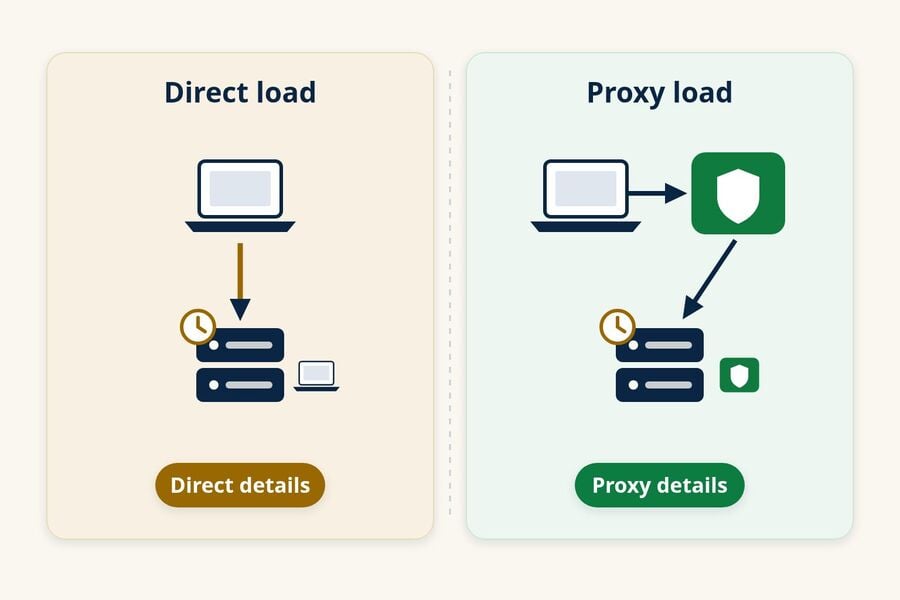
- Blocking (Thunderbird, classic Outlook for Windows, Gmail or Yahoo set to "ask"): no request reaches the sender until you load images, so there is nothing to log.
- Proxying when you open (Gmail, Outlook.com, and Tmailor): the image comes from the provider's server rather than straight from your device, which replaces some details about you. The request still happens when you view the message, so the sender may still see that an open happened and roughly when.
- Preloading when mail arrives (Apple's Protect Mail Activity, Proton Mail): images are fetched whether or not you read the message, so open times stop meaning much.
Blocking gives the clearest control, and preloading keeps messages looking normal with the least effort. A well-designed proxy can replace some connection or device details, but proxy behavior varies, and a fetch triggered when you view a message may still reveal an open.
What does blocking images not stop?
Blocking images stops pixel requests, but it does not stop other ways a sender can measure engagement:
- Tracked links. Many links pass through a redirect or carry tracking parameters, so a click is counted no matter how images are handled.
- Read receipts. A read receipt and a tracking pixel are different. A read receipt is an email feature that may ask the recipient for approval, while a tracking pixel reports an image request without any prompt. In Gmail, only eligible work or school accounts can request read receipts, and some configurations send them automatically.
- Replies and anything you type on a website you reach from the email.
- A VPN alone. A VPN may change the IP address the sender sees, but it does not prevent the image request from being logged.
If your email app can show messages as plain text, that view avoids remote images entirely. If you want a filter before messages ever reach your main inbox, a forwarding alias such as DuckDuckGo Email Protection removes known trackers before it passes mail along. Deciding between a long-term alias and a short-lived address is a separate choice, and our comparison of temp mail vs email aliases walks through it.
How does Tmailor handle tracking pixels in your inbox?
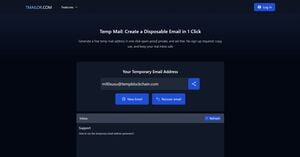
Tmailor sanitizes message HTML before you see it and routes supported remote images through its own image proxy, but it does not make opens invisible. The sanitizer removes active content such as scripts, embedded frames, forms, and event-handler attributes, and rewrites remote images, including CSS background images, so they load through the proxy instead of straight from the sender.
The bigger privacy benefit is where the tracker points. A temporary address separates a signup from your primary inbox, so open and click data attach to that address instead of your personal one. Tmailor is receive-only, and messages are deleted about 24 hours after they arrive. If you are new to disposable inboxes, our overview of how temp mail works explains the basics.
Limits of Tmailor's image proxy
When we checked the proxy on October 19, 2026, the image host received a generic desktop browser signature instead of the reader's own. That replaces your browser details, but it does not guarantee anonymity. Remote images are requested when the message is viewed, the image host may still receive network identifiers, and a sender may still record the request. Tmailor leaves ordinary links unchanged, so clicking a tracked link can still be logged, and there is no "ask before loading images" switch. The article on whether temp mail can be traced covers what a separate address does and does not hide.
Frequently Asked Questions
Does Gmail block email tracking pixels?
Not by default. Gmail loads images through Google's servers, which Google says keeps senders from learning about your computer or location, but Google also says a sender may still know you opened a message with images. To stop that signal, set Images to "Ask before displaying external images."
Can someone tell I opened an email without a read receipt?
Yes, often. A tracking pixel or a tracked link can report activity without any read receipt, and you never see a prompt. Blocking remote images stops the pixel, but clicking a tracked link still counts.
Can a tracking pixel reveal my exact location?
No. A direct pixel request can expose your IP address, which can be used to estimate a broad location or network provider, but an IP address does not reveal a street address by itself. Features such as Apple's Protect Mail Activity hide your IP address from senders.
Does blocking images stop tracked links?
No. Image settings only control whether remote images load. A link that passes through a click-tracking redirect or carries tracking parameters reports the click whenever you open it, so preview where a link goes before you tap it.
Is an email open report proof that I read the message?
No. An open report only shows that an image was requested. Security scanners, privacy proxies, and Apple's background preloading can trigger it without anyone reading, and blocked images can hide a real open.
Block images or privacy-load them: pick your setting
If you want the clearest control, block remote images and load them only for senders you trust. If you would rather keep messages looking normal, use a preloading feature such as Protect Mail Activity or Proton's Block email tracking, and accept that opens are blurred rather than hidden. Either way, check links before you click them.
For one-off signups and newsletters you may never read again, create a free temp mail so any tracking stays tied to an address you can walk away from.
Jordan Mills has covered disposable email, OTP delivery and online privacy since 2018. He writes Tmailor's guides on staying anonymous, avoiding spam, and getting verification codes to land every time.