How Email Works: SMTP, DNS, and Why Temporary Email Exists
Most people use email every day without knowing what happens between clicking "Send" and the message appearing in someone's inbox. Understanding that journey — through SMTP servers, DNS lookups, and MX records — reveals exactly why temporary email services work the way they do.
Quick access
This guide explains email infrastructure from the ground up: the protocols that route messages across the internet, the records that tell servers where to deliver mail, and how temp mail services hook into this system to create disposable inboxes that work instantly without registration. For a practical overview of what temp mail is and when to use it, see the complete guide to temporary email.
A Brief History of Email — From ARPANET to Temp Mail
The story of email begins in 1971 when Ray Tomlinson, working on the U.S. Department of Defense's ARPANET, sent the first electronic message between two machines. His key innovation was the "@" symbol, separating the user name from the host computer — a convention that survives unchanged more than fifty years later.
Throughout the 1980s and 1990s, email expanded from research labs to everyday life. Desktop clients like Eudora and Microsoft Outlook gave personal computer users access to electronic mail for the first time. Then, in the late 1990s, free webmail services — Hotmail in 1996, Yahoo Mail in 1997, and eventually Gmail in 2004 — made email universally accessible to anyone with a browser and an internet connection.
But universal access brought universal problems. By the late 2000s, spam had grown to the overwhelming majority of all email traffic worldwide. Phishing attacks grew more sophisticated. Data breaches exposed hundreds of millions of email addresses. These escalating threats created demand for a new service category: temporary email. The first disposable inbox providers appeared in the mid-2000s, and the concept has evolved into a mature privacy tool used by millions today. For the full evolution, see The Evolution of Temp Mail.
The Journey of an Email — Step by Step
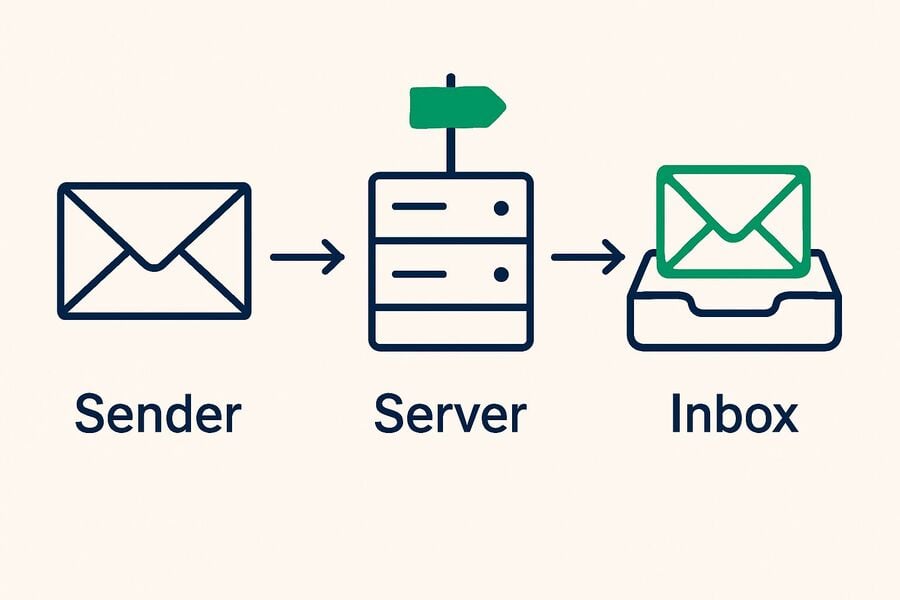
Sending an email feels instant, but the message passes through multiple systems before reaching its destination. Here is what actually happens, broken into four steps.
Step 1 — You Hit Send: Email Client to SMTP Server
When you compose a message in Gmail, Outlook, Thunderbird, or any other email client and press "Send," your client connects to an outgoing mail server using a protocol called SMTP — Simple Mail Transfer Protocol. This connection typically uses port 587 (with STARTTLS encryption) or port 465 (with implicit TLS).
Your client authenticates with the SMTP server using your username and password, then hands off the message. At this point, the email has left your device and is now the server's responsibility to deliver.
Step 2 — DNS Lookup: Where Does This Email Go?
The SMTP server needs to figure out where to deliver your message. It does this by querying the Domain Name System (DNS) for the MX record — Mail Exchanger record — of the recipient's domain.
For example, if you're sending to someone@gmail.com, the SMTP server asks DNS: "What server handles email for gmail.com?" DNS responds with something like alt1.gmail-smtp-in.l.google.com — that's the address of Google's incoming mail server. The MX record is, in essence, a forwarding instruction that says "deliver all mail for this domain to this server."
This MX record system is the foundation that makes temp mail possible, but we'll get to that shortly.
Step 3 — Server-to-Server Delivery: SMTP Relay
Your sending SMTP server connects to the recipient's incoming SMTP server (the one specified by the MX record) and performs an SMTP handshake—a structured conversation in which the two servers verify identities, negotiate encryption, and transfer the message. TLS encryption protects the email content during this server-to-server transit.
If the first MX server is unavailable, the sending server falls back to the secondary MX records (most domains list multiple MX records for redundancy). If all servers are unreachable, the email is queued for retry. After multiple failed attempts over hours or days, the sender receives a bounce notification.
Step 4 — Inbox Storage: IMAP and POP3
Once the receiving server accepts the message, it stores the email and waits for the recipient to check their inbox. The recipient's email client retrieves messages using one of two protocols:
IMAP (Internet Message Access Protocol): Syncs email across multiple devices. Messages stay on the server, and any action you take (read, delete, move) is reflected everywhere. This is what Gmail, Outlook, and most modern services use.
POP3 (Post Office Protocol 3): Downloads email to a single device and typically deletes it from the server. Less common today but still used in some configurations where local storage is preferred.
Components of an Email Message
Every email is more than just the text you see. Under the surface, it carries structured data that tells servers how to route, display, and process the message.
Headers: Metadata including From, To, Subject, Date, and Message-ID. These are the routing instructions that every server along the delivery chain reads and acts on.
Hidden headers: Fields like Return-Path (where bounces go), Received (a chain showing every server the email passed through), and Authentication-Results (SPF, DKIM, and DMARC check outcomes). These are invisible in most email clients but reveal the full journey of a message.
Body: The actual content, formatted as either plain text, HTML, or both (multipart/alternative). Most modern emails are HTML, which is why you see formatted text, images, and clickable links.
Attachments: Files encoded using MIME (Multipurpose Internet Mail Extensions). MIME encodes binary files into text-safe formats that can travel through email's text-based infrastructure.
How Temp Mail Hooks Into This Infrastructure
Here is where everything connects. Temporary email services don't use a separate, proprietary system — they plug directly into the standard email infrastructure described above. This is why temp mail addresses receive real emails from real servers: they are real email addresses, just with a different lifecycle.
Catch-All MX Records — Instant Address Generation
When tmailor.com registers a domain (say, example-temp.com), it configures the MX record for that domain to point at Tmailor's receiving server. Critically, the server is configured as a "catch-all"—it accepts email sent to any address on that domain, regardless of whether the address is pre-created.
This is why you get a working temp mail address instantly. The address doesn't need to be "created" in a traditional sense. The MX record tells the internet, "send all email for this domain to our server," and the server accepts everything that arrives. When you visit tmailor.com and see a randomly generated address, that address is already functional because the domain's MX record already routes all mail to Tmailor's server. For a deeper technical explanation, see catch-all and random aliases.
No SMTP Outbound = Receive-Only
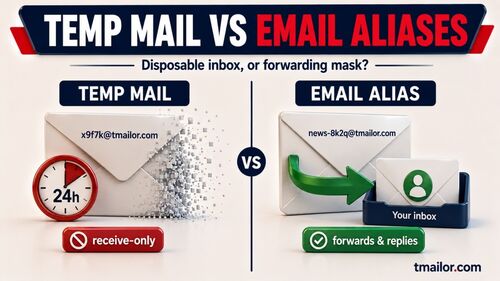
Temp mail services set up MX records (for receiving) but do not configure SPF, DKIM, or DMARC records for outbound sending. These authentication records are what email servers use to verify that a sending server is authorized to send email on behalf of a domain.
Without them, any email sent from a temp mail domain would fail authentication checks and land in spam — or be rejected outright. So temp mail is receive-only: a deliberate design choice, but a real limitation all the same. Tmailor cannot send or reply, and enabling outbound would get its domains blacklisted quickly.
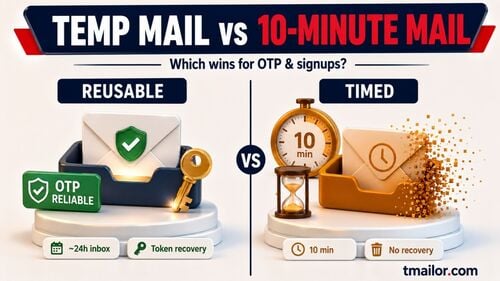
The receive-only model comes with a few other constraints worth stating plainly, because they follow from the same lightweight design. Inbound attachments are stripped, so a file sent to a Tmailor address cannot be opened or downloaded — only the text, codes, and links come through. There is no spam folder and no filtering: every message that arrives is shown, so if something has not appeared, it simply has not been delivered. Messages stay visible for about 24 hours from arrival, then clear automatically. And because no login is needed to get an address, the Access Token issued with each address is what lets you reopen it later. It is a recovery key, not a password, and for a guest address nobody can reissue it if you lose it. If you create a free Tmailor account and stay signed in, the addresses you create are saved there and can be reopened from Created Emails.
Many Domains, One Catch-All Model
Tmailor runs a large, rotating pool of domains rather than a single one, and each carries its own catch-all MX record pointing back to the receiving server. The pool is deliberately unpublished: printing the full list would simply hand it to the vendors who compile disposable-email blocklists.
Having more than one domain matters for a practical, technical reason. Some sites keep lists of known disposable domains and reject an address whose domain is on the list. If a particular domain is rejected, generating a new address on a different domain is ordinary troubleshooting — the same way you might try a different provider when one is down. That is also why domain variety improves OTP reliability.
One boundary, though: a per-domain blocklist is different from a policy. If a service's terms forbid disposable email outright, cycling through domains to get onto it is not troubleshooting — it is working around a rule the site set on purpose. In that case, use a real address you own. Temp mail is for sites that allow it.
Google-MX Infrastructure for Inbound Mail
Tmailor routes incoming email through Google's mail servers, so the MX records for its domains point to Google-MX infrastructure — the same backbone that handles Gmail's inbound mail. In practice, that means reliable, well-connected receiving: the servers that accept your verification emails are ones the rest of the internet already knows how to reach.
Actual delivery speed still depends mostly on the sending side — the service emailing you decides when the message goes out — so this is about reliability and reach, not a guaranteed head start. For the reasoning behind the setup, see why Tmailor uses Google's servers.
Email Security — Why Your Inbox Is a Target
Understanding email infrastructure also means understanding why it is attacked so aggressively. Your email address is the most commonly exploited identifier on the internet.
Phishing: Attackers forge the "From" header to impersonate banks, employers, or services you trust. SMTP was designed in an era of trust, and sender verification (SPF, DKIM, DMARC) was bolted on decades later. Many servers still don't enforce it strictly.
Spam: Close to half of all email traffic worldwide is still spam. Every time you enter your real email address on a website, you increase the odds that it ends up on a marketing list — or worse, gets sold to a data broker.
Data breaches: Your email address is typically the primary key in every database you've ever signed up with. When a service is breached, your email address is the first thing exposed, and it becomes the key for credential-stuffing attacks against your other accounts.
Tracking pixels: Hidden 1x1 images embedded in marketing emails tell senders when you open a message, from which device, and sometimes your approximate location. Your inbox is not just a mailbox — it's a surveillance tool for marketers.
These threats are exactly why temporary email exists. By using a disposable address for low-trust interactions, you keep your real email out of the databases that eventually get breached, sold, or scraped.
Email Clients and Providers — A Quick Overview
How you access email depends on your client (the software) and your provider (the service).
Webmail providers: Gmail, Outlook.com, Yahoo Mail, ProtonMail. These offer both the email account and a browser-based client. Most people use one of these as their primary email.
Desktop clients: Thunderbird, Apple Mail, Microsoft Outlook (desktop). These connect to your provider via IMAP or POP3 and let you manage email offline.
Temp mail clients: Tmailor offers a web-based client, dedicated mobile apps for Android and iOS, a Telegram bot, and the Tmailor browser extension for desktop browsers. Unlike traditional clients, they need no login and no registration to start; the address works the moment the page loads. If you want to reopen that same address later, save its Access Token, or create it while signed in to the optional free account so it is saved to Created Emails.
From Email Basics to Temp Mail — Connecting the Dots
Now you understand the full picture. Email travels through SMTP, gets routed by DNS and MX records, and lands in an inbox managed by IMAP or POP3. Temp mail services tap into exactly this infrastructure: they register domains, configure catch-all MX records, run receiving servers on Google's infrastructure, and present your incoming mail through a simple web interface.
There is nothing "fake" about a temporary email. It uses the same protocols, routing, and delivery mechanisms as every other email on the internet. The difference is intentional: temp mail addresses are designed to be disposable, anonymous, and short-lived — which is precisely what makes them useful for privacy protection, spam avoidance, and low-risk signups.
For a complete technical walkthrough of every component, see how temporary email works. Ready to try it yourself? Create a free temp mail address in under ten seconds.
Frequently Asked Questions
Is Temp Mail using real email protocols?
Yes, 100%. Temp mail receives email through standard SMTP and routes it via standard MX records — the same infrastructure Gmail and Outlook use. The addresses are technically real email addresses with an intentionally limited lifespan.
Why can't Temp Mail send emails?
Temp mail services don't configure SPF, DKIM, or DMARC records for outbound authentication. Without these, any email sent from a temp mail domain would fail verification checks and be rejected or marked as spam. This is a deliberate architecture choice to keep disposable domains functional for receiving.
Can I see the email headers of temp mail messages?
Yes. Emails received through temp mail carry the same headers as any other email: From, To, Subject, Date, Received chain, and authentication results. The headers will show the full delivery path, including the Google servers that tmailor.com uses for processing.
What makes tmailor.com's email delivery faster than competitors?
Two design choices help: Google's mail infrastructure handles the SMTP inbound traffic, and a CDN serves the web interface from locations close to you. That tends to make the inbox feel responsive wherever you are. More precisely, how fast a verification email actually arrives depends mostly on the site sending it, not on the receiving side, so treat this as reliable, well-connected receiving rather than a guaranteed speed advantage over any particular competitor. The reasoning is in why Tmailor uses Google's servers.

Marcus Lee writes Tmailor's step-by-step guides — signing up to apps and platforms with temp mail, using the mobile app and Telegram bot, custom domains, reusing addresses, and getting the most out of disposable email day to day.