TMAILOR BLOG

Quick Start: Get a Temporary Email in 10 Seconds (Web, Mobile, Telegram)

Marcus LeeHow-To & Product Guides Editor

You don't need an account, a phone number, or even 30 seconds. Open tmailor.com on any browser, launch the mobile app, or message the Telegram bot — and a fresh temporary email address is ready to copy before you finish reading this sentence. This quick-start guide walks through all three methods step by step: web, mobile app (Android & iOS), and Telegram. You'll also learn how to save your access token so you can reopen the same inbox later on any device, and when to generate a new address rather than reuse an existing one.

Quick access

A quick start for new users: your temporary email address is instantly visible upon first opening across Web, Android/iOS, and Telegram. Copy it right away; you can tap 'New Email' only when you want to use a different address. Learn how to save a token to reopen the same inbox later.

TL;DR

  • Instant address on first open (Web/App/Telegram)—no need to generate.
  • Copy the address → paste into the site/app → refresh (or auto‑refresh) to read the OTP.
  • Use New Email/New Address only when you want a different address.
  • You can save your token to reopen the exact address later.
  • Receive‑only, no attachments; messages purge after ~24 hours.

Start Faster on the Web

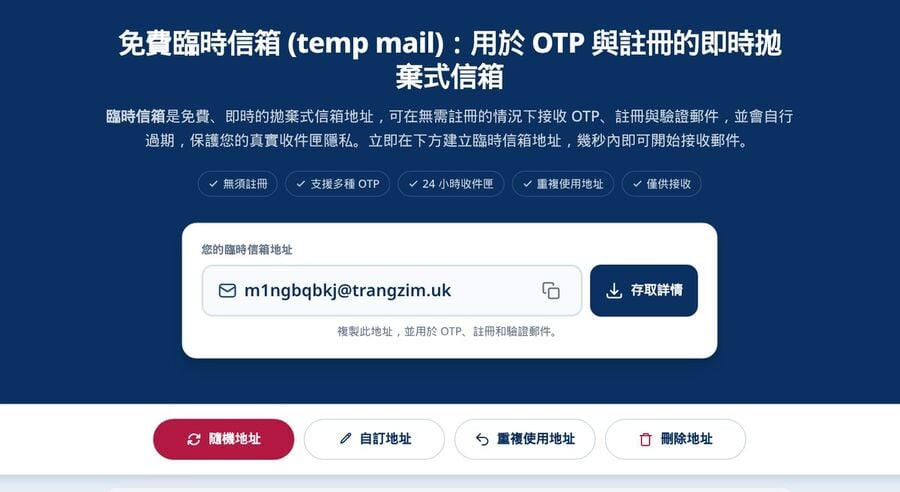
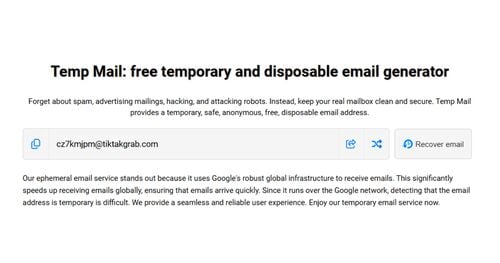
temp mail website

Open and use the address that appears on the screen immediately—no generation step is needed.

What You'll Do

  • Copy the pre‑shown address and paste it into the site/app that requested the email.
  • Could you refresh the inbox to view the incoming OTP or message?
  • Please keep the address private; you can capture a token if you plan to use it.

Step‑by‑Step (Web)

Step 1: Open the web quick start

Go to the temp mail homepage → a ready‑to‑use address is already visible at the top of the inbox.

Step 2: Copy your address

Tap Copy next to the address. Confirm the clipboard toast.

Step 3: Paste where needed

Please paste the address into the signup or OTP field on the target site/app.

Step 4: Refresh and read

Return to the inbox tab and refresh (or wait for auto‑refresh) to see new mail.

Step 5: Optional — change address

Tap New Email only if you want a different address (e.g., a site blocks the current one).

Step 6: Keep it for later

If you need this address again, you can save the token securely (see 'Reuse Your Temporary Mail Address').

Go Quicker on Mobile

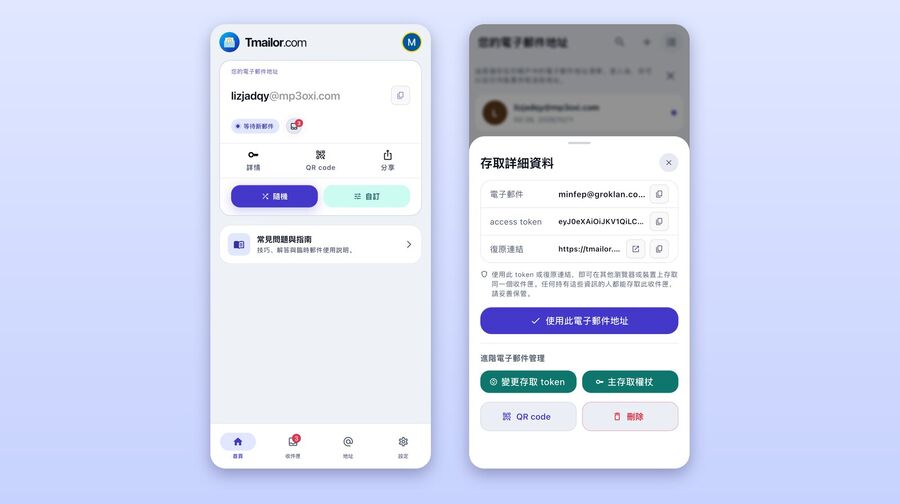
Open the app and use the address that's already visible. Notifications help you catch OTPs on time.

Why Mobile Helps

  • Fewer context switches than browser tabs.
  • Push notifications surface OTPs quickly, reducing the risk of timeouts.
A smartphone lock screen displays a new email alert while the app UI shows a one-tap copy action emphasizing fewer taps and faster OTP visibility

Step‑by‑Step (iOS)

Step 1: Install from the App Store

Install the official iOS app via the App Store (also linked on the Temp Mail on Mobile hub).

Step 2: Open the app

Your temporary address is already displayed—no generation step is required.

Step 3: Copy → paste

Use Copy, then paste it into the requesting service.

Step 4: Read the code

Return to the app and open the latest message.

Step 5: Optional — change address

Tap "New Email" only when you want a different email address.

Step 6: Optional — token

Save the "access token" securely for reuse.

Mobile hygiene: Keep Do Not Disturb off while awaiting OTPs; confirm the clipboard (Android toast / iOS Paste preview).

Step‑by‑Step (Android)

Step 1: Install from Google Play

Install the official app via Google Play (you can also find the link on the temporary email address in the mobile hub).

Step 2: Open the app

On your first launch, your temporary address is already displayed at the top of the inbox—no need to generate one.

Step 3: Copy → paste

Tap Copy to place the address on the clipboard. Paste it in your target app/site.

Step 4: Read OTP

Return to the app; messages auto‑refresh. Tap the newest message to view the code.

Step 5: Optional — change address

Tap "New Email" only when you want to switch to a new address.

Step 6: Optional — token reuse

Fetch the "access token" and store it in a password manager to reopen the same inbox later.

Use Telegram for Hands‑Free Checks

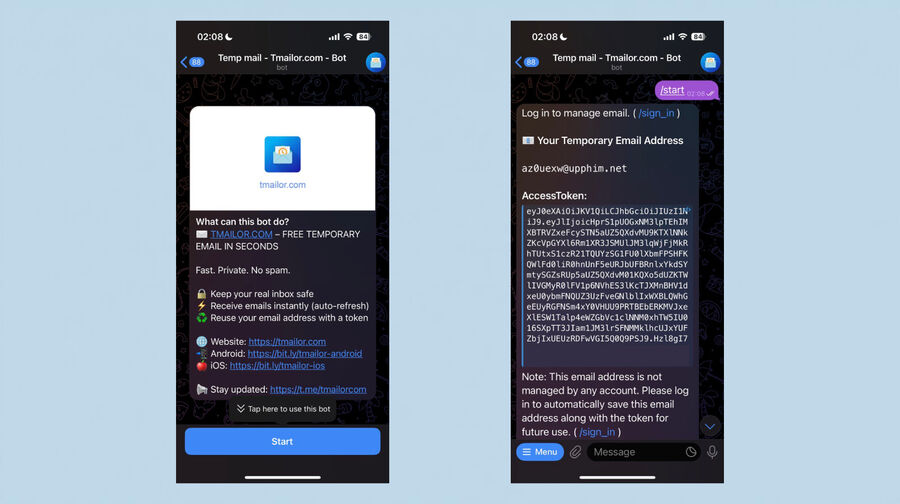
A chat interface features a bot message with a temporary address and a new message indicator illustrating hands-free inbox checks inside a messaging app

Start the bot; your address will appear in the chat on your first use.

Prerequisites

Step‑by‑Step (Telegram)

Step 1: Start here

👉 Start here: https://t.me/tmailorcom_bot

Alternatively, open the Telegram app and search for: @tmailorcom_bot (tap the verified result).

Step 2: Press Start

Tap Start to begin the chat. The bot immediately displays your current temporary email address—no extra command needed on first run.

Step 3: Copy the address

Tap‑and‑hold the address → Copy.

Step 4: Paste and request code

Please paste the address into the signup or OTP form and then submit the request.

Step 5: Read incoming mail

Stay in Telegram; new messages appear in the thread. Use /refresh_inbox to check for new mail if needed.

Step 6: Optional — change address

Generate a different address any time: menu → /new_email or type /new_email.

Step 7: Optional — token reuse

If the bot exposes a token, copy and save it. You can also reuse it via /reuse_email (paste your token) or obtain/store the token through the Web/App after receiving the email.

More useful commands:

  • /list_emails — manage saved addresses
  • /sign_in/sign_out — account actions
  • /language — choose language
  • /help — show all commands

Keep an Address for Later

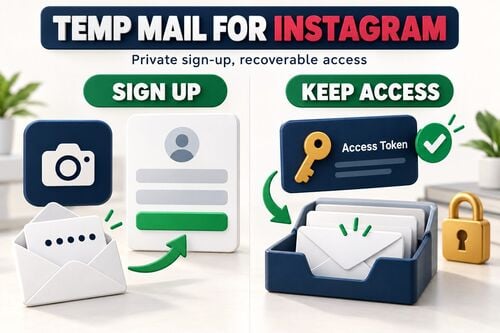
You can use the same temp address with a secure token when you expect future resets, receipts, or returns.

What Is the Token?

A private code that allows the same inbox to be reopened across sessions or devices. Please keep it secret; if you lose it, the inbox won't be able to recover.

Step‑by‑Step (Getting Your Token)

Step 1: Find the token action

On Web/App/Telegram, open Options (or the bot/help panel) to reveal Get/Show Token.

Step 2: Save it securely

Copy the token and store it in a password manager with the following fields: servicetemporary addresstokenand date.

Step 3: Test token reuse

Open the 'Reuse Temp Mail Address' flow, paste the token, and confirm that it reopens the same address.

Step 4: Guard the token

Please don't post it publicly; rotate if exposed.

Step‑by‑Step (Reopening via Token)

Step 1: Open the Reuse flow

Go to the official Reuse Temp Mail address page.

Step 2: Paste your token and validate the format.

Step 3: Confirm the address and copy it again as needed.

Step 4: Continue where you left off (returns, receipts, password resets).

Short‑life alternative: For one‑and‑done tasks, try 10-minute mail.

Comparison at a Glance

Flow First‑Open Behavior Best For Alerts Reuse Same Address Notes
Web Address shown instantly One‑off checks Tab refresh With token Fastest copy→paste
Android Address shown instantly Frequent OTPs Push With token Fewer app‑switches
iOS Address shown instantly Frequent OTPs Push With token Same as Android
Telegram Address shown in chat Multitasking Chat alerts With token Hands‑free checks
10‑Minute New address per session Ultra‑short tasks Tab refresh No Disposable only

How‑To

How‑To: Web Quick Start

  1. Open the temp mail homepage — the address is visible.
  2. Copy the address.
  3. Could you paste where needed?
  4. Could you refresh to read the OTP?
  5. Please save the token if you plan to use the address.

How‑To: Android/iOS

  1. Open the app — the address is visible.
  2. Copy → paste in the target app/site.
  3. Read the incoming OTP (push/auto‑refresh).
  4. Tap 'New Address' only if you want to change your address.
  5. Could you save the token for reuse?

Install from the hub: temp mail on mobile (Google Play • App Store).

How‑To: Telegram Bot

  1. Open the verified hub: temp mail on Telegram.
  2. Start the bot — the address will appear in the chat.
  3. Copy → paste into the site/app.
  4. Please just read messages inline; rotate the address only when needed.
  5. You can store the token if it's available.

FAQ

Do I need to tap 'New Email' on the first use?

No. An address is automatically displayed on the web, app, and Telegram. Tap New Email only to switch to a different address.

Where do I find the token?

In Options (Web/App) or the bot's help. Save and test it in the reuse flow.

How long are messages kept?

About 24 hours, then they're purged automatically by design.

Can I send emails or open attachments?

No—receive-only, no attachments, to reduce risk and improve deliverability.

Why didn't I receive my OTP immediately?

Wait 60–90 seconds before resending; avoid sending multiple resends. Consider mobile/Telegram for alerts.

Can I manage multiple addresses on my mobile device?

Yes—copy any current address; rotate only when needed; save tokens for those you'll reuse.

Is there a one-and-done option?

Yes—use 10-minute mail for ultra-short tasks without reuse.

What if I lose my token?

The original inbox cannot be recovered. Create a new address and store the new token securely.

Does this work on both iOS and Android?

Yes—install via the hub: temp mail on mobile.

Is the Telegram bot safe to start?

Launch it from the verified hub: use a temporary email address on Telegram to avoid impersonators.

Can I preview links safely?

Use plain-text view when in doubt; verify the URL before clicking.

Are there many domains?

Yes—the service rotates among many domains; change only if a site blocks the current one.

Marcus Lee
About the author
How-To & Product Guides Editor

Marcus Lee writes Tmailor's step-by-step guides — signing up to apps and platforms with temp mail, using the mobile app and Telegram bot, custom domains, reusing addresses, and getting the most out of disposable email day to day.

See more articles

Temp Mail for Reddit Safer Signups Throwaway Tips
Article

Temp Mail for Reddit: Safer Signups & Throwaway Tips

Use temp mail for Reddit signups and throwaway accounts. Skip inbox spam while keeping access to your communities — plus OTP and recovery tips.

Temporary Email Guide Protect Privacy Stop Spam
Article

Temporary Email Guide: Protect Privacy & Stop Spam

The complete guide to temporary email. Learn what it is, how it works, a 5-point security checklist, step-by-step setup, and how to pick the right provider.

Create an Instagram Account with Temp Mail Guide
Article

Create an Instagram Account with Temp Mail (Guide)

Create an Instagram account with a temporary email. See which domains work, how to handle verification, and when to switch to a real email for long-term use.

Best Temp Mail Services in the USA Honest Review
Article

Best Temp Mail Services in the USA — Honest Review

A practical, no-hype review of the best temporary email services in the USA. Compare deliverability, OTP reliability, domain variety, and privacy features.

Create a TikTok Account with Temp Mail Safely
Article

Create a TikTok Account with Temp Mail (Safely)

Create a TikTok account using temp mail — private, quick, and reusable. Learn which domains TikTok accepts, how to handle OTP, and when to use your real email.

Temp Mail for Travel Deals Flights Hotel Alerts
Article

Temp Mail for Travel Deals, Flights & Hotel Alerts

Use a temporary email to grab flight deals, hotel newsletters & travel promos without spamming your main inbox. Learn the 3-layer setup that keeps bookings safe

10 Best Temp Mail Providers In-Depth Review
Article

10 Best Temp Mail Providers — In-Depth Review

A comprehensive review of the 10 best temporary email providers. Compare features, deliverability, OTP support, domain variety, and privacy side by side.

Temp Mail Mobile App Disposable Email on Your Phone
Article

Temp Mail Mobile App: Disposable Email on Your Phone

Disposable temporary email now has a dedicated mobile app. Get instant temp addresses on Android and iPhone with notifications and token-based inbox reuse.

Disposable Email vs Burner Email vs Temp Mail 2026
Article

Disposable Email vs Burner Email vs Temp Mail (2026)

Disposable email, burner email, and temp mail are not the same thing. Learn the real differences and which privacy tool fits each use case in 2026.

Temp Mail for E-Commerce Safer Checkouts Less Spam
Article

Temp Mail for E-Commerce: Safer Checkouts & Less Spam

Shop online without sharing your real email address. Use temp mail for promos and signups, rotate domains for OTPs, and keep a reusable inbox for receipts.