How to Create and Use a Temp Mail Address on tmailor.com
Creating a temporary email on tmailor.com takes only a moment — but getting the most out of it takes a little know-how: saving your Access Token, switching domains, running several inboxes at once, and reopening an old address. This guide walks through all of it, step by step, on the current interface.
Quick access
What is temp mail, and why use it?
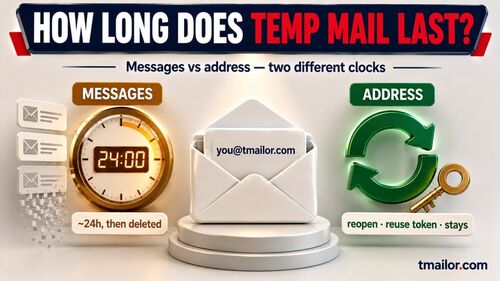
A temp mail address — also called temporary or disposable email — is an inbox you use for a short task: registering an account, receiving a one-time code, or grabbing a download link. When you're done, you simply walk away; on Tmailor, messages stay visible for about 24 hours from arrival and then clear on their own. You never hand over a name, phone number, or your real inbox.
That makes it useful whenever you want to keep your primary email clean and your identity private:
- Stop spam at the source. Give a disposable address to sites that are likely to email you forever, and your real inbox stays quiet.
- Stay anonymous. Sign up for forums, trials, and services without exposing personal data to platforms you don't fully trust.
- Verify quickly. Catch confirmation links and OTP codes, then move on.
How to create a temp mail address on tmailor.com
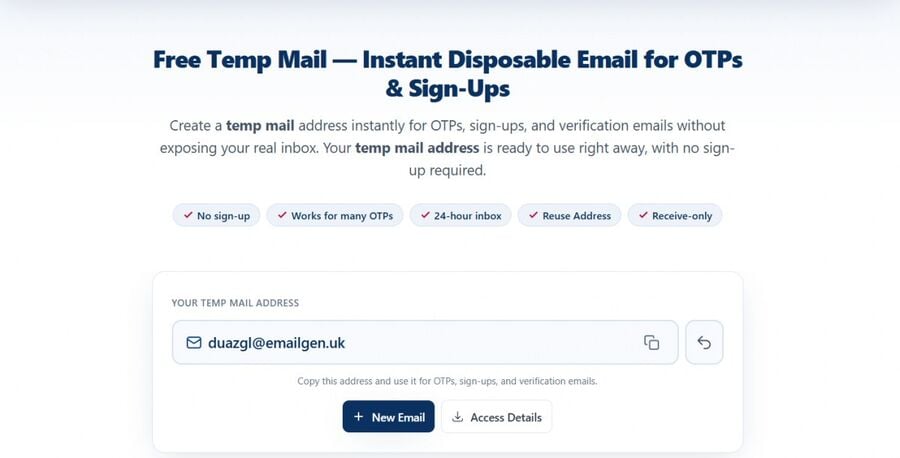
Tmailor gives you a receive-only inbox in seconds: open the generator, click + New Email, choose a random address or type your own custom name, then copy the address into the signup form. There is no account to make and nothing to install, and incoming messages stay visible for about 24 hours from arrival.
Step 1 — Open the site
Open the temp mail generator. No account or registration is needed to start; an optional account exists only if you later want your saved addresses synced across devices.
Step 2 — Create an inbox
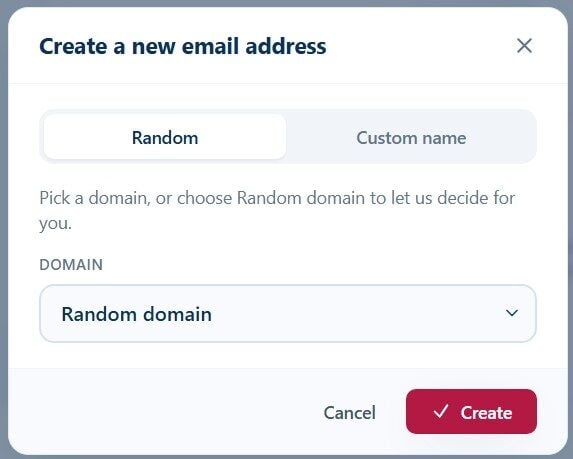
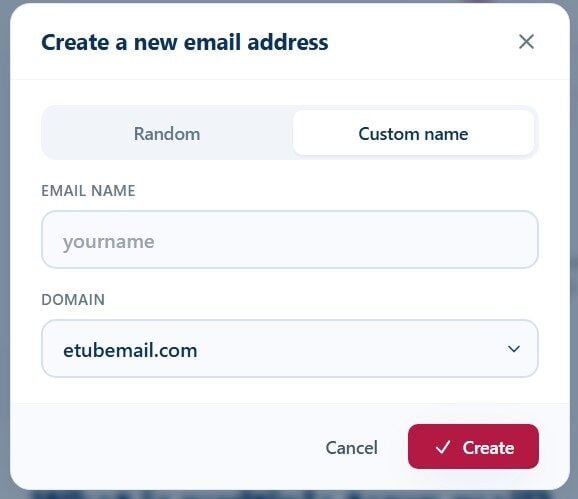
Click + New Email. The "Create a new email address" dialog opens with two tabs:
- Random — pick a domain from the list, or leave it on Random domain to let Tmailor choose one, then press Create.
- Custom name — type your own prefix in Email name, choose a Domain, and press Create. A custom name makes the inbox easy to recognize when you're running several.
Step 3 — Use the address
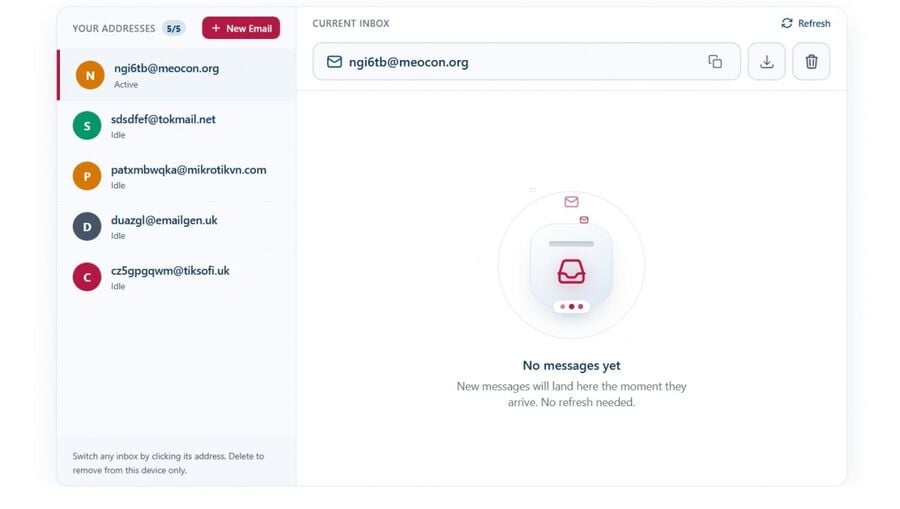
Your new address appears in the Your Addresses list on the left, marked Active, and its inbox opens on the right under Current Inbox. Use the copy icon to grab the address and paste it into any signup form.
Read and manage your inbox
Mail lands in the Current Inbox panel as soon as it arrives — no refresh needed, though a Refresh button is there if you want to force a check. Tmailor has no spam folder and no filters, so every message that reaches your address is shown in this one list. Until mail arrives, you'll see a "No messages yet" placeholder.
From the toolbar you can:
- Copy the current address.
- Download a message to keep its text before the 24-hour cleanup. This saves the message itself — Tmailor does not accept file attachments, so there is never a file to open alongside it.
- Delete the address — note this removes it from this device only.
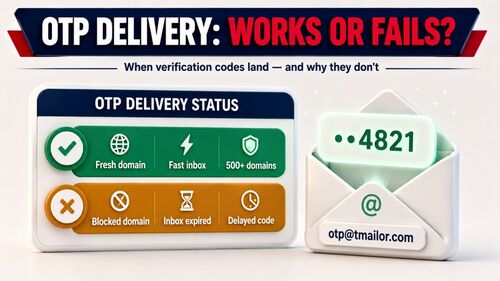
If a verification code never turns up, it never reached the address. Check that the site accepted the address, then ask the sender to send it again; there is no spam folder or filter on Tmailor that could be holding it back.
Run several inboxes at once
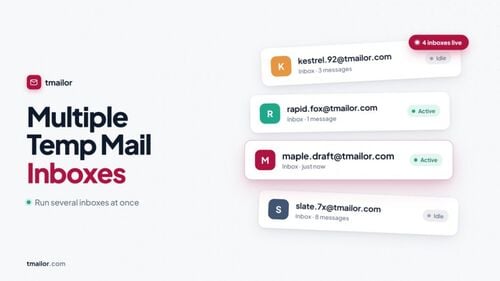
Tmailor isn't limited to a single address. Create more with + New Email and each one joins the Your Addresses sidebar with its own avatar and an Active / Idle state. Click any address to switch to its inbox instantly — no reload, no extra tab. This is ideal for catching OTP codes from different services, separating signups, or testing flows side by side. For a full walkthrough, see multiple temp mail inboxes.
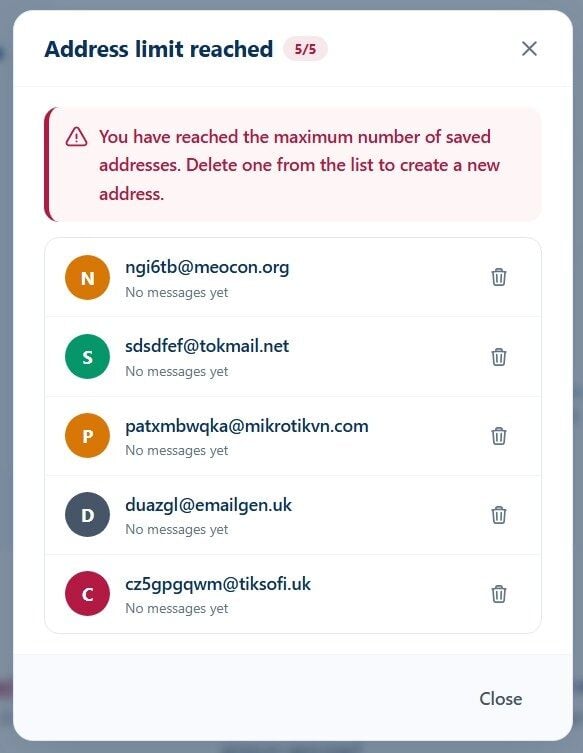
Saved addresses are capped per device. When you reach the limit, the "Address limit reached" dialog asks you to delete one before creating another.
Save and reuse an address with an Access Token
Addresses are stored on your device, so clearing your browser data or moving to another machine would normally lose them. To keep one, save its Access Token — a recovery key that lets you reopen that exact address later, on any browser or device.
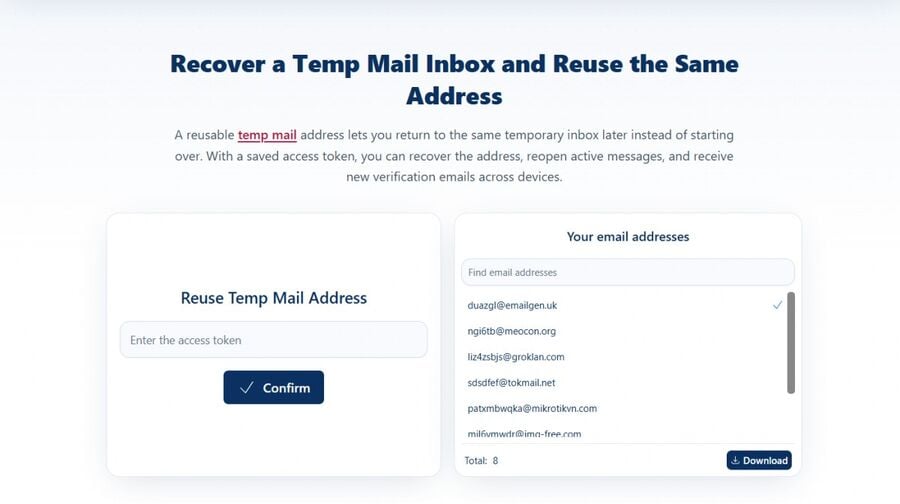
- Save the Access Token for the inbox you want to keep (store it somewhere safe, like a note or a password manager).
- Later, open the reuse temp mail page.
- Paste the Access Token, confirm you're not a robot, and submit.
The address and its inbox come back, and it keeps receiving new mail. Two things are worth knowing. An Access Token is a recovery key, not a password: it lets you back in, but it does not lock anyone else out. And a lost Access Token cannot be recovered by anyone, so store it carefully. Individual messages still clear after about 24 hours — the Access Token restores the address, not expired emails.
Change or switch domains
Random addresses are drawn from a large rotating pool of domains that Tmailor deliberately does not publish; the Custom name tab exposes only a few of them. If a signup form rejects an address because that one domain sits on a blocklist, creating another address on a different domain is ordinary troubleshooting. Open the Create dialog, pick a different domain, and try again.
There is a line, though, and it's worth being clear about. If a site's terms say it does not accept disposable email, then cycling through addresses is no longer troubleshooting — it is working around a policy the site has stated, and it tends to cost you the account later anyway. Use a real address you control for those signups. If you simply want a private inbox on a domain nobody else is using, you can route a domain you own through Tmailor — see custom domain temp mail.
Use Tmailor on mobile and Telegram
Tmailor isn't web-only. The same disposable inboxes are available on Android, iOS, and Telegram:
- Android & iOS apps — see the Android and iOS app page for install steps and a walkthrough of creating an inbox on a phone.
- Telegram bot — get a disposable inbox without leaving the app, via the Telegram temp mail bot.
What you can do with a temp mail address
- Account signups — newsletters, forums, and online services without spam blowback.
- OTP & verification — receive confirmation links and one-time codes, then click through.
- Free trials — claim a trial without attaching your primary email to it.
- Testing — developers and QA can spin up several inboxes to test signup, reset, and onboarding emails.
- One-time downloads — grab a gated link or activation code with no long-term footprint.
Privacy and security
Tmailor is built to keep disposable use private:
- No account required. Create and use inboxes anonymously; no name, phone, or personal data.
- Tracking removed. Tmailor strips tracking pixels and scripts from messages, so opening an email doesn't report your activity back to the sender.
- Auto-delete. Messages are removed automatically about 24 hours after they arrive, so nothing lingers.
- Device-local addresses. Your address list stays on your device unless you save an Access Token to carry it elsewhere.
One thing an anonymous inbox is not, however, is a locked one. A temp mail address has no password, and its Access Token is a way back in for you rather than a lock that keeps others out. Treat anything that lands in a disposable inbox as disposable, and keep bank, work, and healthcare accounts on a real address.
Good to know (limits)
Tmailor is a short-lived, receive-only inbox. The limits below are deliberate, and they are easier to work with when you know them up front.
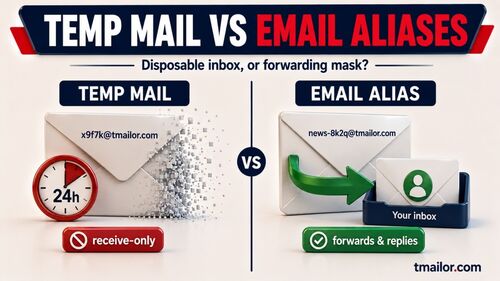
- Receive-only. Tmailor receives mail; it cannot send or reply.
- No attachments. Inbound files are stripped, so a file someone emails to a Tmailor address can never be opened or downloaded. When you need the attachment, use a real inbox.
- No spam folder, no filters. Every message that arrives is shown in the one inbox list; nothing is quarantined or sorted away.
- Not for anything you must keep. Messages stay visible about 24 hours from arrival, so a disposable inbox is the wrong home for account recovery or long-term storage.
- Some sites don't accept disposable email. If a single domain is blocked, a new random address draws from Tmailor's rotating pool, so it may be a different domain. If the site's stated policy is to refuse disposable email, use a real address instead.
Frequently Asked Questions
Is Tmailor free?
Yes. You can create and use temporary inboxes for free, with no registration and no personal information required.
Can I reuse a temp mail address?
Yes — save the address's Access Token and restore it later from the reuse temp mail page, even on another device. The Access Token is a recovery key rather than a password, and a lost Access Token cannot be recovered by anyone.
How long do emails stay in the inbox?
About 24 hours from the moment a message arrives, after which it is deleted automatically. Copy any code or link you need before then, because expired messages cannot be restored.
Can I send emails from Tmailor?
No. Tmailor is receive-only — it's designed for verification and spam prevention, not for sending or replying. It also cannot receive attachments: inbound files are stripped before the message reaches your inbox.
Is my temp mail address secure?
Tmailor removes tracking pixels and scripts from incoming mail and never asks for personal data, so your activity stays private. It is not a locked mailbox, though — the address has no password — so treat whatever lands in it as disposable and keep sensitive accounts on a real inbox.
Can I sign up for Facebook, Instagram, TikTok, or X with a temp mail address?
Sometimes. Acceptance varies between platforms and can change without warning, so an address that works one week may be refused the next. When a platform does accept it, Tmailor will receive the confirmation message. Instagram itself supports switching between separate profiles, and readers who keep a personal profile apart from a public one usually register each with its own address — that is the context for keeping Instagram profiles separate. There is a comparable walkthrough for a Facebook account with temporary email. Where a platform's terms rule out disposable email, use a real address rather than cycling through domains.
Conclusion
Creating a temp mail address on Tmailor is quick: open the site, click + New Email, pick Random or Custom name, and you're ready to receive. Save the Access Token when you want an inbox back, run several at once when you need to, and let the 24-hour cleanup handle the rest — while keeping the limits in mind and leaving anything you can't afford to lose on a real inbox. Create a temporary email address and try it now.

Marcus Lee writes Tmailor's step-by-step guides — signing up to apps and platforms with temp mail, using the mobile app and Telegram bot, custom domains, reusing addresses, and getting the most out of disposable email day to day.