Quick Start: Get a Temporary Email in 10 Seconds (Web, Mobile, Telegram)
You don't need an account, a phone number, or even 30 seconds. Open tmailor.com on any browser, launch the mobile app, or message the Telegram bot — and a fresh temporary email address is ready to copy before you finish reading this sentence. This quick-start guide walks through all three methods step by step: web, mobile app (Android & iOS), and Telegram. You'll also learn how to save your Access Token so you can reopen the same inbox later on any device and when to generate a new address rather than reuse an existing one.
Quick access
A quick start for new users: your temporary email address is already visible the moment you open the web page, the Android/iOS app, or the Telegram bot. Copy it right away — there is no "generate" step. Tap New Email only when you actually want a different address, and save your Access Token if you expect to reopen the same inbox later.
TL;DR
- Instant address on first open (Web/App/Telegram)—no need to generate.
- Copy the address → paste into the site/app → refresh (or wait for auto‑refresh) to read the OTP.
- Use New Email (Change in the app) only when you want a different address.
- Save your Access Token to reopen the exact same address later.
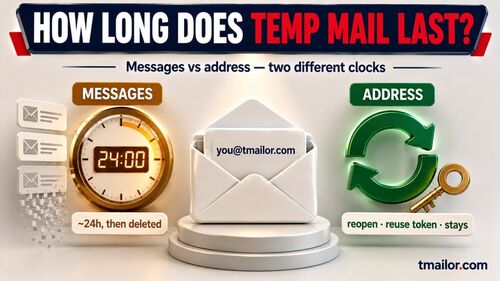
- Receive‑only. Inbound attachments are stripped, so you cannot open or download a file sent to a Tmailor address. Messages stay visible for about 24 hours.
Start Faster on the Web
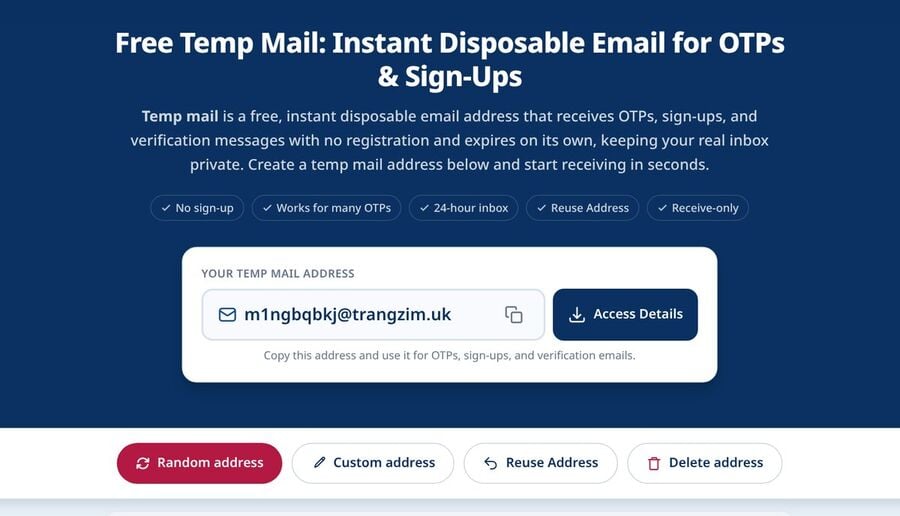
The web flow is the fastest of the three: open the homepage and a working temporary address is already on screen, so the first thing you do is copy it, not create it. Paste it into the signup or OTP field, then come back to the tab to read the message. Nothing to install, no account, no verification of any kind.
What You'll Do
- Copy the pre‑shown address and paste it into the site or app that asked for an email.
- Refresh the inbox (or wait for it to update) to read the incoming OTP or message.
- Keep the address to yourself, and save its Access Token if you plan to come back to it.
Step‑by‑Step (Web)
Step 1: Open the web quick start
Go to the temp mail homepage → a ready‑to‑use address is already visible at the top of the inbox.
Step 2: Copy your address
Tap Copy next to the address. Confirm the clipboard toast.
Step 3: Paste where needed
Paste the address into the signup or OTP field on the target site or app.
Step 4: Refresh and read
Return to the inbox tab and refresh (or wait for auto‑refresh) to see new mail.
Step 5: Optional — change address
Tap New Email only if you want a different address. See below for when that is the right move and when it isn't.
Step 6: Keep it for later
If you'll need this address again, open Access Details and save the Access Token somewhere safe (see Reuse Your Temporary Mail Address).
If a Site Rejects the Address
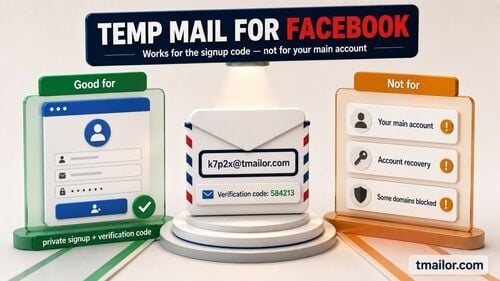
Some sites keep blocklists of known disposable domains. Tmailor draws random addresses from a large rotating pool of domains it deliberately doesn't publish, while the custom‑name tab exposes only a few. So if one particular domain is refused, generating another address and trying once more is ordinary troubleshooting.
Where it stops being troubleshooting: if a service's policy is that it does not accept disposable email at all, cycling through addresses is working around that rule, not solving a technical problem. Use your regular inbox for that signup instead.
If No Code Arrives
Refresh the inbox first, give it a moment, then request the code once more if it still hasn't landed. Tmailor has no spam folder and no user‑configurable filters, so there is no other folder to check: every message that reaches the address is shown in the main list. If nothing arrives at all, the site most likely refused the address at signup — see above.
Go Quicker on Mobile
The Android and iOS apps show a ready‑to‑copy address the moment they open, then use push notifications to surface incoming mail without you watching a browser tab. Pick mobile when the code is time‑sensitive. The inbox itself behaves the same as the web: receive‑only, attachments stripped, messages visible for about 24 hours.
Why Mobile Helps
- Fewer context switches than browser tabs.
- Push notifications surface OTPs quickly, reducing the risk of timeouts.
Step‑by‑Step (iOS)
Step 1: Install the app
Get the official iOS app from the temp mail mobile app page.
Step 2: Open the app
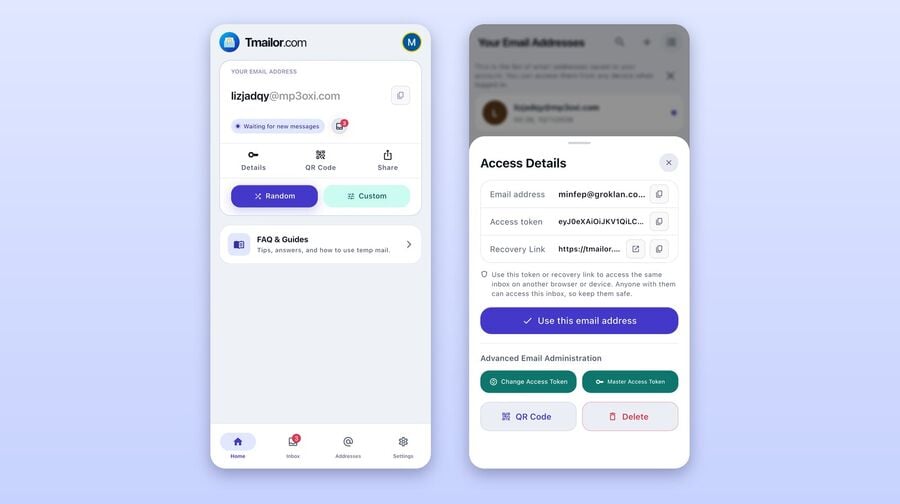
Your temporary address is already displayed—no generation step is required.
Step 3: Copy → paste
Use Copy, then paste it into the requesting service.
Step 4: Read the code
Return to the app and open the latest message.
Step 5: Optional — change address
Tap Change only when you want a different address.
Step 6: Optional — Access Token
Tap Share to see the address, its Access Token, and a recovery link. Store the token if you'll reuse the address.
Mobile hygiene: Keep Do Not Disturb off while you're waiting on an OTP, and confirm the clipboard (Android toast / iOS paste preview).
Step‑by‑Step (Android)
Step 1: Install the app
Get the official Android app from the temp mail mobile app page.
Step 2: Open the app
On first launch, your temporary address is already displayed at the top of the inbox—no need to generate one.
Step 3: Copy → paste
Tap Copy to place the address on the clipboard. Paste it in your target app or site.
Step 4: Read OTP
Return to the app; messages auto‑refresh. Tap the newest message to view the code.
Step 5: Optional — change address
Tap Change only when you want to switch to a different address.
Step 6: Optional — token reuse
Open Share, copy the Access Token, and keep it in a password manager so you can reopen the same inbox later.
Use Telegram for Hands‑Free Checks
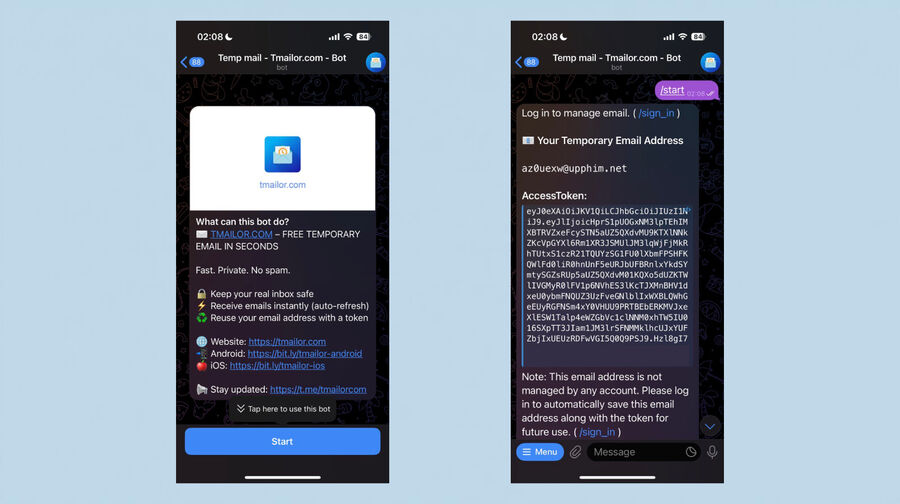
The Telegram route is the one you never have to leave. Start the bot once and it posts a temporary address, plus its Access Token, straight into the chat; new mail then arrives in that same thread. It's the best fit when you're already working in Telegram and don't want a second app or tab open just to catch one code.
Prerequisites
- A Telegram account and the official Telegram client.
- Start from the verified temp mail on Telegram page on tmailor.com.
Step‑by‑Step (Telegram)
Step 1: Open the official bot
Launch it from the Telegram bot page, or open Telegram and search for @tmailorcom_bot and tap the verified result. Starting from the official page is the safest way to avoid impersonator bots.
Step 2: Press Start
Tap Start. The bot immediately posts your temporary email address and its Access Token—no extra command needed on the first run.
Step 3: Copy the address
Tap‑and‑hold the address → Copy.
Step 4: Paste and request the code
Paste the address into the signup or OTP form, then submit the request.
Step 5: Read incoming mail
Stay in Telegram — the bot pushes new messages into the thread as they arrive.
Step 6: Optional — change address
Use the bot's Menu to create a different address when you need a separate inbox. If a site's policy is that it doesn't accept disposable email, use your regular inbox for that signup rather than working through more addresses.
Step 7: Optional — token reuse
Save the Access Token the bot posted in chat. Send /reuse_email with that token to reopen the same inbox, or /sign_in to save and manage addresses across devices.
More commands: send /help or open the Menu for the bot's current command list — that's the authoritative version if a command is ever renamed.
Keep an Address for Later
Every address comes with an Access Token: a recovery key that lets you reopen that exact inbox from any device. Save it when you expect something to come back later — a password reset, a receipt, a return code. Without the token, an address you walk away from is effectively gone, because there is no account to log back into.
What Is the Token?
The Access Token is a private string that reopens the same inbox across sessions and devices. Treat it as a recovery key rather than a password: it lets you back in, but it is not a lock, and it doesn't keep anyone else out, so don't share it or post it publicly. If you lose it, nobody — including Tmailor — can recover it for you.
Step‑by‑Step (Getting Your Token)
Step 1: Open the access details
On the web, open Access Details next to the address. In the app, tap Share. In Telegram, the bot already posted the token in the chat when it created the address.
Step 2: Save it securely
Copy the token into a password manager with the fields you'll need later: service, temporary address, token, date.
Step 3: Test token reuse
Open the reuse temp mail address flow, paste the token, and confirm it reopens the same address.
Step 4: Guard the token
Don't post it publicly. A token can't be reset or revoked, so if you think it's been exposed, move on to a fresh address and save the new token.
Step‑by‑Step (Reopening via Token)
Step 1: Open the Reuse flow
Go to the official reuse temp mail address page.
Step 2: Paste your token into the token field.
Step 3: Confirm the address and copy it again as needed.
Step 4: Continue where you left off (returns, receipts, password resets).
What the Access Token Does Not Preserve
The token brings back the address, not an archive. Messages stay visible for about 24 hours and are then removed, so reopening an inbox a week later gets you the same address with an empty message list. Save anything you need — a receipt, an order number — while it's still on screen.
Short‑lived alternative: For one‑and‑done tasks, try 10-minute mail.
Comparison at a Glance
All four flows hand you an address instantly, and all four are receive‑only. What actually differs is how you find out mail has arrived: the web tab refreshes, the apps push a notification, and Telegram drops the message into a chat you're already in. Pick on that basis.
| Flow | First‑Open Behavior | Best For | Alerts | Reuse Same Address | Notes |
|---|---|---|---|---|---|
| Web | Address shown instantly | One‑off checks | Tab refresh | With Access Token | Fastest copy→paste |
| Android | Address shown instantly | Frequent OTPs | Push | With Access Token | Fewer app‑switches |
| iOS | Address shown instantly | Frequent OTPs | Push | With Access Token | Same as Android |
| Telegram | Address shown in chat | Multitasking | Chat alerts | With Access Token | Hands‑free checks |
| 10‑Minute | New address per session | Ultra‑short tasks | Tab refresh | No | Disposable only |
How‑To
How‑To: Web Quick Start
- Open the temp mail homepage — the address is visible.
- Copy the address.
- Paste it where the signup or OTP field asks for an email.
- Refresh the inbox to read the code.
- Save the Access Token from Access Details if you plan to reuse the address.
How‑To: Android/iOS
- Open the app — the address is visible.
- Copy → paste in the target app or site.
- Read the incoming OTP (push or auto‑refresh).
- Tap Change only if you want a different address.
- Tap Share and save the Access Token for reuse.
Install from the temp mail mobile app page (Android and iOS).
How‑To: Telegram Bot
- Open the verified temp mail on Telegram page.
- Start the bot — the address and its Access Token appear in the chat.
- Copy → paste into the site or app.
- Read messages inline as the bot posts them.
- Store the Access Token if you'll want the address back.
FAQ
Do I need to tap 'New Email' on the first use?
No. An address is already there when you open the web page, the app, or the bot. Tap New Email (Change in the app) only when you want to switch to a different address.
Where do I find the token?
On the web, open Access Details next to the address. In the app, tap Share. In Telegram, the bot posts the Access Token in chat when it creates the address. Save it, then test it in the reuse flow.
How long are messages kept?
About 24 hours from arrival, then they're removed automatically by design. Save anything you need while it's still on screen.
Can I send emails or open attachments?
No. Tmailor is receive-only, so you cannot send or reply. Inbound attachments are stripped as mail arrives, which means you cannot open or download a file someone sends to a Tmailor address. If you're expecting a file, use a regular inbox.
Why didn't I receive my OTP immediately?
Refresh the inbox, give it a moment, then request the code once more if needed. There is no spam folder and no filters to check — every message that arrives is shown in the main list. If nothing ever arrives, the site probably rejected the address at signup. The app and the Telegram bot alert you faster than a browser tab.
Can I manage multiple addresses on my mobile device?
Yes. Each address has its own Access Token, so you can save several and reopen any of them later. Signing in lets you save and manage your addresses across devices instead of tracking tokens by hand.
Is there a one-and-done option?
Yes—use 10-minute mail for ultra-short tasks without reuse.
What if I lose my token?
A lost Access Token cannot be recovered by anyone, and there is no account to fall back on. Create a new address and store the new token securely.
Does this work on both iOS and Android?
Yes—install either app from the temp mail mobile app page.
Is the Telegram bot safe to start?
Launch it from the official temp mail on Telegram page rather than from a search result, so you land on the real bot and not an impersonator.
Can I preview links safely?
Read the sender and the visible URL before you click anything, the same way you would in a normal inbox. Be extra careful with unfamiliar senders, and never open a link from a temp inbox to sign in to an account that matters.
Are there many domains?
Random addresses are drawn from a large rotating pool of domains that Tmailor doesn't publish; the custom-name tab exposes only a few. If one specific domain is refused, another address may work. If the service doesn't accept disposable email as a matter of policy, use your regular inbox for that signup.

Marcus Lee writes Tmailor's step-by-step guides — signing up to apps and platforms with temp mail, using the mobile app and Telegram bot, custom domains, reusing addresses, and getting the most out of disposable email day to day.