ការចាប់ផ្តើមរហ័ស៖ ទទួលបានអ៊ីមែលបណ្តោះអាសន្នក្នុងរយៈពេល 10 វិនាទី (គេហទំព័រ ទូរសព្ទដៃ Telegram)
ការចាប់ផ្តើមរហ័សសម្រាប់អ្នកប្រើប្រាស់ថ្មី៖ អាសយដ្ឋានអ៊ីមែលបណ្តោះអាសន្នរបស់អ្នកអាចមើលឃើញភ្លាមៗនៅពេលបើកជាលើកដំបូងនៅលើគេហទំព័រ Android/iOS និង Telegram ។ ចម្លងវាភ្លាមៗ; អ្នកអាចចុចលើ 'New Email' តែនៅពេលដែលអ្នកចង់ប្រើអាសយដ្ឋានផ្សេង។ ស្វែងយល់ពីរបៀបរក្សាទុក token ដើម្បីបើកប្រអប់សារដូចគ្នានៅពេលក្រោយ។
ការចូលប្រើរហ័ស
TL; គ្រូពេទ្យ
ចាប់ផ្តើមលឿនជាងមុននៅលើគេហទំព័រ
Go Quicker នៅលើទូរស័ព្ទ
ប្រើ Telegram សម្រាប់ការត្រួតពិនិត្យដោយមិនប្រើដៃ
រក្សាអាសយដ្ឋានសម្រាប់ពេលក្រោយ
ការប្រៀបធៀបមួយភ្លែត
របៀបធ្វើ
សំណួរគេសួរញឹកញាប់
TL; គ្រូពេទ្យ
- អាសយដ្ឋានបន្ទាន់នៅពេលបើកដំបូង (Web/App/Telegram) - មិនចាំបាច់បង្កើតទេ។
- ចម្លងអាសយដ្ឋាន → បិទភ្ជាប់ទៅក្នុងគេហទំព័រ/កម្មវិធី → refresh (ឬ auto-refresh) ដើម្បីអាន OTP ។
- ប្រើ New Email/New Address តែនៅពេលដែលអ្នកចង់បានអាសយដ្ឋានផ្សេងប៉ុណ្ណោះ។
- អ្នកអាចរក្សាទុក token របស់អ្នកដើម្បីបើកអាសយដ្ឋានពិតប្រាកដនៅពេលក្រោយ។
- ទទួលតែប៉ុណ្ណោះ, គ្មានឯកសារភ្ជាប់; សារសម្អាតបន្ទាប់ពី ~ 24 ម៉ោង។
ចាប់ផ្តើមលឿនជាងមុននៅលើគេហទំព័រ
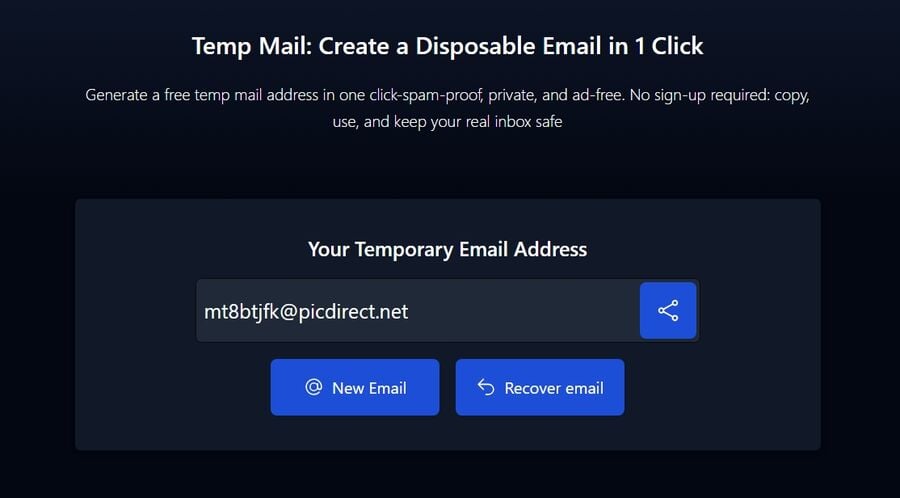
បើក និងប្រើអាសយដ្ឋានដែលបង្ហាញនៅលើអេក្រង់ភ្លាមៗ មិនចាំបាច់មានជំហានជំនាន់ទេ។
អ្វី ដែល អ្នក នឹង ធ្វើ
- ចម្លងអាសយដ្ឋានដែលបានបង្ហាញជាមុន ហើយបិទភ្ជាប់វាទៅក្នុងគេហទំព័រ/កម្មវិធីដែលបានស្នើសុំអ៊ីមែល។
- តើអ្នកអាចធ្វើឱ្យប្រអប់សារចូលឡើងវិញដើម្បីមើល OTP ឬសារចូលបានទេ?
- សូមរក្សាអាសយដ្ឋានជាឯកជន; អ្នកអាចចាប់យក token ប្រសិនបើអ្នកមានគម្រោងប្រើវា។
ជាជំហាន ៗ (គេហទំព័រ)
ជំហានទី 1: បើកគេហទំព័រចាប់ផ្តើមរហ័ស
ចូលទៅកាន់គេហទំព័រសំបុត្របណ្តោះអាសន្ន → អាសយដ្ឋានដែលត្រៀមរួចជាស្រេចអាចមើលឃើញនៅផ្នែកខាងលើនៃប្រអប់សារ។
ជំហានទី 2: ចម្លងអាសយដ្ឋានរបស់អ្នក។
ចុច Copy នៅជាប់នឹងអាសយដ្ឋាន។ បញ្ជាក់ clipboard toast ។
ជំហានទី 3: បិទភ្ជាប់កន្លែងដែលត្រូវការ
សូមបិទភ្ជាប់អាសយដ្ឋានទៅក្នុងវាលចុះឈ្មោះ ឬ OTP នៅលើគេហទំព័រ/កម្មវិធីគោលដៅ។
ជំហានទី 4: ធ្វើឱ្យស្រស់ និងអាន
ត្រឡប់ទៅផ្ទាំង inbox ហើយធ្វើឱ្យស្រស់ (ឬរង់ចាំការធ្វើឱ្យស្រស់ដោយស្វ័យប្រវត្តិ) ដើម្បីមើលសំបុត្រថ្មី។
ជំហានទី 5: ស្រេចចិត្ត - ផ្លាស់ប្តូរអាសយដ្ឋាន
ចុចអ៊ីមែលថ្មីតែប្រសិនបើអ្នកចង់បានអាសយដ្ឋានផ្សេង (ឧទាហរណ៍ គេហទំព័ររារាំងអាសយដ្ឋានបច្ចុប្បន្ន)។
ជំហានទី 6: រក្សាទុកវាសម្រាប់ពេលក្រោយ
ប្រសិនបើអ្នកត្រូវការអាសយដ្ឋាននេះម្តងទៀត អ្នកអាចរក្សាទុក token ដោយសុវត្ថិភាព (សូមមើល 'Reuse Your Temporary Mail Address').
Go Quicker នៅលើទូរស័ព្ទ
បើកកម្មវិធី ហើយប្រើអាសយដ្ឋានដែលអាចមើលឃើញរួចហើយ។ ការជូនដំណឹងជួយអ្នកចាប់ OTPs ទាន់ពេលវេលា។
ហេតុអ្វីបានជាទូរស័ព្ទចល័តជួយ
- ប្តូរបរិបទតិចជាងផ្ទាំងកម្មវិធីរុករក។
- ការជូនដំណឹងជំរុញបង្ហាញ OTPs យ៉ាងឆាប់រហ័ស កាត់បន្ថយហានិភ័យនៃការអស់ពេល។
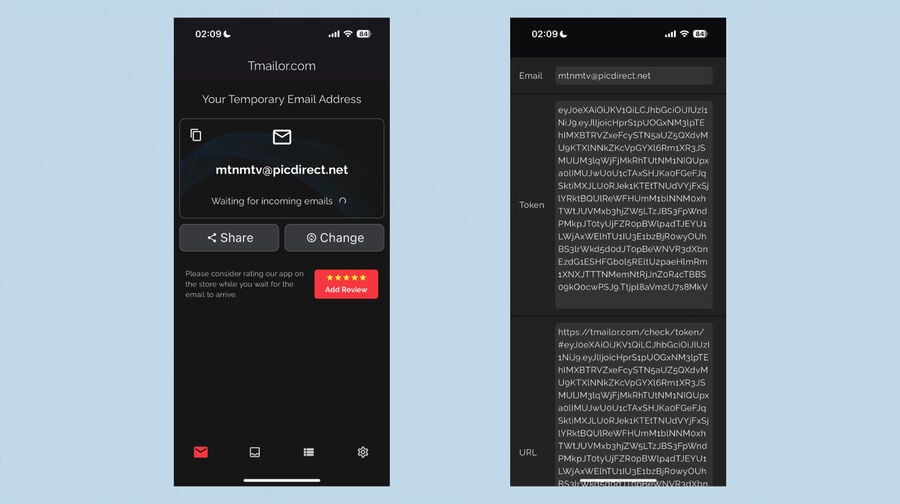
ជាជំហាន ៗ (iOS)
ជំហានទី 1: ដំឡើងពី App Store
ដំឡើងកម្មវិធី iOS ផ្លូវការតាមរយៈ App Store (ភ្ជាប់ផងដែរនៅលើ Temp Mail on Mobile hub)។
ជំហានទី 2: បើកកម្មវិធី
អាសយដ្ឋានបណ្តោះអាសន្នរបស់អ្នកត្រូវបានបង្ហាញរួចហើយ - មិនទាមទារជំហានជំនាន់ទេ។
ជំហានទី 3: ចម្លង → បិទភ្ជាប់
ប្រើ Copy បន្ទាប់មកបិទភ្ជាប់វាទៅក្នុងសេវាកម្មដែលស្នើសុំ។
ជំហានទី 4: អានលេខកូដ
ត្រឡប់ទៅកម្មវិធីហើយបើកសារចុងក្រោយបំផុត។
ជំហានទី 5: ស្រេចចិត្ត - ផ្លាស់ប្តូរអាសយដ្ឋាន
ប៉ះ "អ៊ីមែលថ្មី" តែនៅពេលដែលអ្នកចង់បានអាសយដ្ឋានអ៊ីមែលផ្សេង។
ជំហានទី 6: ស្រេចចិត្ត - និមិត្តសញ្ញា
រក្សាទុក "access token" ដោយសុវត្ថិភាពសម្រាប់ការប្រើប្រាស់ឡើងវិញ។
អនាម័យចល័ត: រក្សា Do Not Disturb បិទខណៈពេលកំពុងរង់ចាំ OTPs; បញ្ជាក់ក្ដារតម្បៀតខ្ទាស់ (Android toast / iOS Paste preview)។
ជាជំហាន ៗ (Android)
ជំហានទី 1: ដំឡើងពី Google Play
ដំឡើងកម្មវិធីផ្លូវការតាមរយៈ Google Play (អ្នកក៏អាចស្វែងរកតំណភ្ជាប់នៅលើអាសយដ្ឋានអ៊ីមែលបណ្តោះអាសន្ននៅក្នុងមជ្ឈមណ្ឌលទូរស័ព្ទចល័ត)។
ជំហានទី 2: បើកកម្មវិធី
នៅលើការបើកដំណើរការដំបូងរបស់អ្នក អាសយដ្ឋានបណ្តោះអាសន្នរបស់អ្នកត្រូវបានបង្ហាញរួចហើយនៅផ្នែកខាងលើនៃប្រអប់សារ - មិនចាំបាច់បង្កើតមួយទេ។
ជំហានទី 3: ចម្លង → បិទភ្ជាប់
ចុច ចម្លង ដើម្បីដាក់អាសយដ្ឋាននៅលើក្ដារតម្បៀតខ្ទាស់។ បិទភ្ជាប់វានៅក្នុងកម្មវិធី/គេហទំព័រគោលដៅរបស់អ្នក។
ជំហានទី 4: អាន OTP
ត្រឡប់ទៅកម្មវិធីវិញ; សារធ្វើឱ្យស្រស់ដោយស្វ័យប្រវត្តិ។ ចុចសារថ្មីបំផុតដើម្បីមើលលេខកូដ។
ជំហានទី 5: ស្រេចចិត្ត - ផ្លាស់ប្តូរអាសយដ្ឋាន
ប៉ះ "អ៊ីមែលថ្មី" តែនៅពេលដែលអ្នកចង់ប្តូរទៅអាសយដ្ឋានថ្មី។
ជំហានទី 6: ស្រេចចិត្ត - ការប្រើប្រាស់ថូខឹនឡើងវិញ
យក "access token" ហើយរក្សាទុកវានៅក្នុងកម្មវិធីគ្រប់គ្រងពាក្យសម្ងាត់ ដើម្បីបើកប្រអប់ចូលដូចគ្នានៅពេលក្រោយ។
ប្រើ Telegram សម្រាប់ការត្រួតពិនិត្យដោយមិនប្រើដៃ
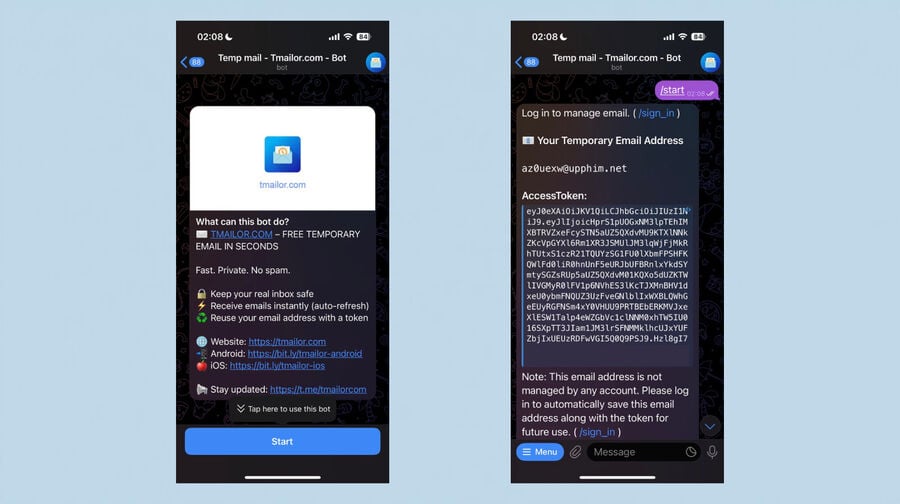
ចាប់ផ្តើម bot; អាសយដ្ឋានរបស់អ្នកនឹងបង្ហាញនៅក្នុងការជជែកនៅពេលប្រើប្រាស់លើកដំបូងរបស់អ្នក។
តម្រូវការជាមុន
- គណនី Telegram និងម៉ាស៊ីនភ្ញៀវ Telegram ផ្លូវការ។
- ចាប់ផ្តើមពីអាសយដ្ឋានអ៊ីមែលបណ្តោះអាសន្នដែលបានផ្ទៀងផ្ទាត់នៅលើទំព័រ Telegram នៅលើ tmailor.com ។
ជាជំហាន ៗ (Telegram)
ជំហានទី 1: ចាប់ផ្តើមនៅទីនេះ
👉 ចាប់ផ្តើមនៅទីនេះ: https://t.me/tmailorcom_bot
ជាជម្រើស បើកកម្មវិធី Telegram ហើយស្វែងរក៖ @tmailorcom_bot (ចុចលើលទ្ធផលដែលបានផ្ទៀងផ្ទាត់)។
ជំហានទី 2: ចុច Start
ចុច Start ដើម្បីចាប់ផ្តើមការជជែក។ bot បង្ហាញអាសយដ្ឋានអ៊ីមែលបណ្តោះអាសន្នបច្ចុប្បន្នរបស់អ្នកភ្លាមៗ - មិនចាំបាច់មានពាក្យបញ្ជាបន្ថែមនៅពេលដំណើរការដំបូងទេ។
ជំហានទី 3: ចម្លងអាសយដ្ឋាន
ប៉ះនិងសង្កត់អាសយដ្ឋាន → ចម្លង។
ជំហានទី 4: បិទភ្ជាប់ និងស្នើសុំលេខកូដ
សូមបិទភ្ជាប់អាសយដ្ឋានទៅក្នុងទម្រង់ចុះឈ្មោះ ឬ OTP ហើយបន្ទាប់មកដាក់ស្នើសុំ។
ជំហានទី 5: អានសំបុត្រចូល
ស្នាក់នៅក្នុង Telegram; សារថ្មីលេចឡើងនៅក្នុងខ្សែស្រឡាយ។ ប្រើ /refresh_inbox ដើម្បីពិនិត្យមើលសំបុត្រថ្មីប្រសិនបើចាំបាច់។
ជំហានទី 6: ស្រេចចិត្ត - ផ្លាស់ប្តូរអាសយដ្ឋាន
បង្កើតអាសយដ្ឋានផ្សេងគ្រប់ពេល៖ menu → /new_email ឬវាយ /new_email ។
ជំហានទី 7: ស្រេចចិត្ត - ការប្រើប្រាស់ថូខឹនឡើងវិញ
ប្រសិនបើ bot បង្ហាញសញ្ញាសម្ងាត់ សូមចម្លង និងរក្សាទុកវា។ អ្នកក៏អាចប្រើវាឡើងវិញតាមរយៈ /reuse_email (បិទភ្ជាប់និមិត្តសញ្ញារបស់អ្នក) ឬទទួលបាន/រក្សាទុកនិមិត្តសញ្ញាតាមរយៈ Web/App បន្ទាប់ពីទទួលបានអ៊ីមែល។
ពាក្យបញ្ជាមានប្រយោជន៍បន្ថែមទៀត៖
- /list_emails - គ្រប់គ្រងអាសយដ្ឋានដែលបានរក្សាទុក
- /sign_in, /sign_out — សកម្មភាពគណនី
- /language - ជ្រើសរើសភាសា
- /help - បង្ហាញពាក្យបញ្ជាទាំងអស់។
រក្សាអាសយដ្ឋានសម្រាប់ពេលក្រោយ
អ្នកអាចប្រើអាសយដ្ឋានបណ្តោះអាសន្នដូចគ្នាជាមួយនឹងនិមិត្តសញ្ញាសុវត្ថិភាព នៅពេលអ្នករំពឹងថានឹងកំណត់ឡើងវិញ បង្កាន់ដៃ ឬត្រឡប់មកវិញនាពេលអនាគត។
តើនិមិត្តសញ្ញាគឺជាអ្វី?
លេខកូដឯកជនដែលអនុញ្ញាតឱ្យប្រអប់សារដូចគ្នាត្រូវបានបើកឡើងវិញនៅទូទាំងវគ្គ ឬឧបករណ៍។ សូមរក្សាវាជាសម្ងាត់; ប្រសិនបើអ្នកបាត់បង់វា ប្រអប់សារនឹងមិនអាចងើបឡើងវិញបានទេ។
ជាជំហាន ៗ (ទទួលបាននិមិត្តសញ្ញារបស់អ្នក)
ជំហានទី 1: ស្វែងរកសកម្មភាពនិមិត្តសញ្ញា
នៅលើ Web/App/Telegram បើកជម្រើស (ឬ bot/help panel) ដើម្បីបង្ហាញ Get/Show Token។
ជំហានទី 2: រក្សាទុកវាដោយសុវត្ថិភាព
ចម្លងនិមិត្តសញ្ញា ហើយរក្សាទុកវានៅក្នុងកម្មវិធីគ្រប់គ្រងពាក្យសម្ងាត់ដែលមានវាលដូចខាងក្រោម៖ សេវាកម្ម , អាសយដ្ឋានបណ្តោះអាសន្ន , ថូខឹន , និងកាលបរិច្ឆេទ .
ជំហានទី 3: សាកល្បងការប្រើប្រាស់ឡើងវិញ token
បើកលំហូរ 'Reuse Temp Mail Address' បិទភ្ជាប់និមិត្តសញ្ញា ហើយបញ្ជាក់ថាវាបើកអាសយដ្ឋានដូចគ្នាឡើងវិញ។
ជំហានទី 4: ការពារនិមិត្តសញ្ញា
សូមកុំបង្ហោះវាជាសាធារណៈ; បង្វិលប្រសិនបើប៉ះពាល់។
ជាជំហានៗ (បើកឡើងវិញតាមរយៈ Token)
ជំហានទី 1: បើកលំហូរប្រើឡើងវិញ
ចូលទៅកាន់ទំព័រអាសយដ្ឋាន Reuse Temp Mail ផ្លូវការ។
ជំហានទី 2: បិទភ្ជាប់និមិត្តសញ្ញារបស់អ្នក និងធ្វើសុពលភាពទម្រង់។
ជំហានទី 3: បញ្ជាក់អាសយដ្ឋាន ហើយចម្លងវាម្តងទៀតតាមតម្រូវការ។
ជំហានទី 4: បន្តកន្លែងដែលអ្នកបានចាប់ផ្ដើម (ត្រឡប់ បង្កាន់ដៃ កំណត់ពាក្យសម្ងាត់ឡើងវិញ)។
ជម្មើសជំនួសជីវិតខ្លី: សម្រាប់កិច្ចការមួយនិងធ្វើ, សាកល្បងសំបុត្រ 10 នាទី.
ការប្រៀបធៀបមួយភ្លែត
| លំហូរ | ឥរិយាបថបើកដំបូង | ល្អបំផុតសម្រាប់ | ការជូនដំណឹង | ប្រើអាសយដ្ឋានដូចគ្នាឡើងវិញ | ភក្ដិកំណត់ត្រាកំណត់ |
|---|---|---|---|---|---|
| គេហទំព័រ | អាសយដ្ឋានបង្ហាញភ្លាមៗ | ការត្រួតពិនិត្យតែម្តង | ធ្វើឱ្យស្រស់ផ្ទាំង | ជាមួយនឹងនិមិត្តសញ្ញា | ចម្លង→បិទភ្ជាប់លឿនបំផុត។ |
| ប្រព័ន្ធប្រតិបត្តិការ Android | អាសយដ្ឋានបង្ហាញភ្លាមៗ | OTPs ញឹកញាប់ | ជំរុញ | ជាមួយនឹងនិមិត្តសញ្ញា | app-switches តិចជាង |
| ប្រព័ន្ធប្រតិបត្តិការ iOS | អាសយដ្ឋានបង្ហាញភ្លាមៗ | OTPs ញឹកញាប់ | ជំរុញ | ជាមួយនឹងនិមិត្តសញ្ញា | ដូចគ្នានឹងប្រព័ន្ធប្រតិបត្តិការ Android ដែរ។ |
| តេឡេក្រាម | អាសយដ្ឋានបង្ហាញនៅក្នុងការជជែក | កិច្ចការច្រើន | ការជូនដំណឹងជជែក | ជាមួយនឹងនិមិត្តសញ្ញា | ការត្រួតពិនិត្យដោយដៃ |
| 10 នាទី | អាសយដ្ឋានថ្មីក្នុងមួយវគ្គ | កិច្ចការខ្លីបំផុត។ | ធ្វើឱ្យស្រស់ផ្ទាំង | ទេ | ចោលតែប៉ុណ្ណោះ |
របៀបធ្វើ
របៀបដើម្បី: Web Quick Start
- បើកគេហទំព័រសំបុត្របណ្តោះអាសន្ន — អាសយដ្ឋានអាចមើលឃើញ។
- ចម្លងអាសយដ្ឋាន។
- តើអ្នកអាចបិទភ្ជាប់កន្លែងដែលត្រូវការបានទេ?
- តើអ្នកអាចធ្វើឱ្យស្រស់ដើម្បីអាន OTP បានទេ?
- សូមរក្សាទុកនិមិត្តសញ្ញាប្រសិនបើអ្នកមានគម្រោងប្រើអាសយដ្ឋាន។
របៀបធ្វើ៖ ប្រព័ន្ធប្រតិបត្តិការ Android / iOS
- បើកកម្មវិធី — អាសយដ្ឋានអាចមើលឃើញ។
- ចម្លង → បិទភ្ជាប់នៅក្នុងកម្មវិធី/គេហទំព័រគោលដៅ។
- អាន OTP ចូល (push/auto-refresh)។
- ចុចលើ 'អាសយដ្ឋានថ្មី' តែប្រសិនបើអ្នកចង់ផ្លាស់ប្តូរអាសយដ្ឋានរបស់អ្នក។
- តើអ្នកអាចរក្សាទុកនិមិត្តសញ្ញាសម្រាប់ប្រើឡើងវិញបានទេ?
ដំឡើងពីមជ្ឈមណ្ឌល៖ សំបុត្របណ្តោះអាសន្ននៅលើទូរសព្ទ (Google Play • App Store) ។
របៀបធ្វើ៖ Telegram Bot
- បើកមជ្ឈមណ្ឌលដែលបានផ្ទៀងផ្ទាត់៖ សំបុត្របណ្តោះអាសន្ននៅលើ Telegram ។
- ចាប់ផ្តើម bot — អាសយដ្ឋាននឹងលេចឡើងនៅក្នុងការជជែក។
- ចម្លង → បិទភ្ជាប់ទៅក្នុងគេហទំព័រ/កម្មវិធី។
- សូមគ្រាន់តែអានសារក្នុងជួរ; បង្វិលអាសយដ្ឋានតែនៅពេលចាំបាច់ប៉ុណ្ណោះ។
- អ្នកអាចរក្សាទុកនិមិត្តសញ្ញាប្រសិនបើវាអាចប្រើបាន។
សំណួរគេសួរញឹកញាប់
តើខ្ញុំត្រូវចុច 'New Email' នៅពេលប្រើប្រាស់លើកដំបូងទេ?
ទេ. អាសយដ្ឋានត្រូវបានបង្ហាញដោយស្វ័យប្រវត្តិនៅលើគេហទំព័រ កម្មវិធី និង Telegram ។ ចុចអ៊ីមែលថ្មីតែប៉ុណ្ណោះដើម្បីប្តូរទៅអាសយដ្ឋានផ្សេង។
តើខ្ញុំរកឃើញនិមិត្តសញ្ញានៅឯណា?
នៅក្នុង Options (Web/App) ឬជំនួយរបស់ bot ។ រក្សាទុក និងសាកល្បងវានៅក្នុងលំហូរប្រើឡើងវិញ។
តើសារត្រូវបានរក្សាទុករយៈពេលប៉ុន្មាន?
ប្រហែល 24 ម៉ោង, បន្ទាប់មកពួកគេត្រូវបានសម្អាតដោយស្វ័យប្រវត្តិដោយការរចនា.
តើខ្ញុំអាចផ្ញើអ៊ីមែល ឬបើកឯកសារភ្ជាប់បានទេ?
No-receive-only, no attachments, to reduce risk and improve deliverability.
ហេតុអ្វីបានជាខ្ញុំមិនទទួលបាន OTP របស់ខ្ញុំភ្លាមៗ?
រង់ចាំ 60-90 វិនាទីមុនពេលផ្ញើឡើងវិញ; ជៀសវាងការផ្ញើឡើងវិញច្រើន។ ពិចារណាទូរស័ព្ទ/Telegram សម្រាប់ការជូនដំណឹង។
តើខ្ញុំអាចគ្រប់គ្រងអាសយដ្ឋានច្រើននៅលើឧបករណ៍ចល័តរបស់ខ្ញុំបានទេ?
បាទ - ចម្លងអាសយដ្ឋានបច្ចុប្បន្នណាមួយ; បង្វិលតែនៅពេលចាំបាច់; រក្សាទុកសញ្ញាសម្ងាត់សម្រាប់អ្នកដែលអ្នកនឹងប្រើឡើងវិញ។
តើមានជម្រើសមួយនិងធ្វើទេ?
បាទ/ចាស - ប្រើសំបុត្រ 10 នាទីសម្រាប់កិច្ចការខ្លីបំផុតដោយមិនចាំបាច់ប្រើឡើងវិញ។
តើមានអ្វីកើតឡើងប្រសិនបើខ្ញុំបាត់បង់និមិត្តសញ្ញារបស់ខ្ញុំ?
ប្រអប់សារដើមមិនអាចយកមកវិញបានទេ។ បង្កើតអាសយដ្ឋានថ្មី និងរក្សាទុកនិមិត្តសញ្ញាថ្មីដោយសុវត្ថិភាព។
តើវាដំណើរការទាំង iOS និង Android ដែរឬទេ?
បាទ/ចាស - ដំឡើងតាមរយៈមជ្ឈមណ្ឌល៖ សំបុត្របណ្តោះអាសន្ននៅលើទូរសព្ទ។
តើ Telegram bot មានសុវត្ថិភាពក្នុងការចាប់ផ្តើមដែរឬទេ?
បើកដំណើរការវាពីមជ្ឈមណ្ឌលដែលបានផ្ទៀងផ្ទាត់៖ ប្រើអាសយដ្ឋានអ៊ីមែលបណ្តោះអាសន្ននៅលើ Telegram ដើម្បីជៀសវាងការក្លែងបន្លំ។
តើខ្ញុំអាចមើលតំណភ្ជាប់ដោយសុវត្ថិភាពបានទេ?
ប្រើទិដ្ឋភាពអត្ថបទធម្មតានៅពេលមានការសង្ស័យ; ផ្ទៀងផ្ទាត់ URL មុនពេលចុច។
តើមានដែនច្រើនទេ?
បាទ - សេវាកម្មបង្វិលក្នុងចំណោមដែនជាច្រើន; ផ្លាស់ប្តូរតែប្រសិនបើគេហទំព័ររារាំងគេហទំព័របច្ចុប្បន្ន។